

You can specify the data collection settings to define the file level collection and storage analysis statistics that you want to collect. You can specify these settings even during the Computer Registration.
From r12.7 SP1, CA SRM supports the file and storage analysis on the volumes level apart from the computers level. By enabling the File and Storage Analysis settings on the volumes, you can set the custom storage analysis flag on the required volumes. In addition, you can disable the file storage analysis on the unwanted volumes.
For related information, see the Setting Data Collection Properties.
Follow these steps:
The File Level Collection and Storage Analysis Settings dialog opens.
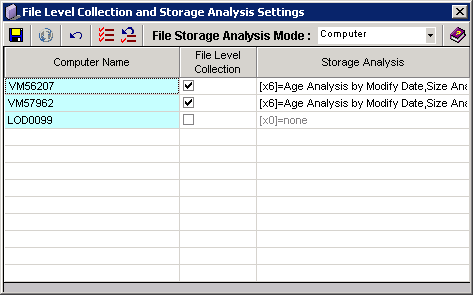
Selecting this option displays all the listed computers and NetApp filers (NAS devices) for which you can set the file storage analysis.
Note: The storage analysis flags are applied to all the corresponding volumes of these selected computers / NetApp filers when you save them.
Selecting this option displays the all the volumes (volumes of computers / NetApp filer shares). By enabling file and storage analysis on the volumes level, you can perform the following operations:
Note:
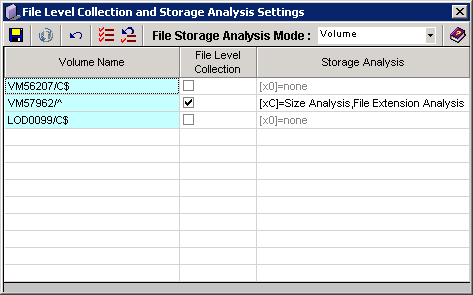
This action allows you to select the settings under the Storage Analysis column.
Note: Enabling the File Level Collection flag, allows you to modify Storage Analysis flags as well as enables Volume Data Collection for the specific managed machine. Click a cell under the Storage Analysis option to view the list of analysis types available for the collection.
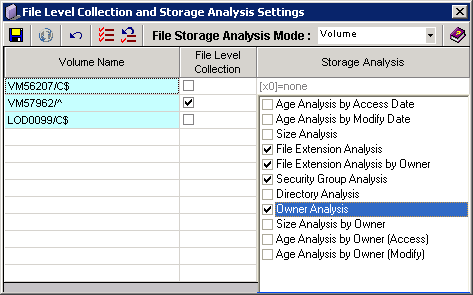
Note: If you enable the file level collection and check some of the storage analysis options, the statistics are collected only for the selected volumes. However, if you want to enable the same flags for all the volumes in a computer, use the Computer mode in the File Storage Analysis Mode drop-down.
Example:
If you have selected two computers (with ten volumes per computer) from the list, and have set the storage analysis flags. The storage analysis flags are saved for the corresponding (2 x 10 = 20) volumes of the selected computers.
|
Copyright © 2016 CA Technologies.
All rights reserved.
|
|