

Disk Arrays in CA Storage Resource Manager › Manage Disk Arrays to Generate Reports on SAN Storage › Manage and Generate Reports on SAN Storage › View the Path from a SAN-Attached Physical Disk to a Logical Disk
View the Path from a SAN-Attached Physical Disk to a Logical Disk
CA SRM allows you to view the mappings between SAN-attached physical disks and the logical disks on the disk arrays to which they belong and generate the report.
Follow these steps:
- Register the disk array using the Disk Array Registration Wizard.
- Register the application host as a managed computer.
- In the Object Tree, expand Network Storage, expand Physical Disks, and select the SAN Attached Disks node.
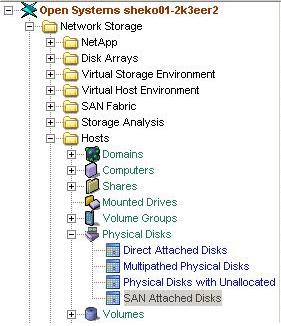
The SAN Attached Disks table opens.
- Select a disk from the table, click the Open Zoom button from the toolbar, and select Disk Array Logical Disk.
The table zooms to the logical disk on the disk array that the physical disk belongs to.
Copyright © 2016 CA Technologies.
All rights reserved.
|
|