

The Windows Client can interface with multiple hosts running the CA SRM Application Server, and with the CA Vantage running on z/OS. Use the following instructions to define host machines with which to connect using the Windows Client.
For Open Systems, you can define and connect to only one host at a time. You cannot define additional Open Systems hosts on the Application Server machine. You can define additional multiple Open System hosts on remote Windows Clients, but you can only connect to one host at a time. For z/OS systems, you can define and connect to multiple hosts.
Note: A Windows Client that is installed on a machine where an Application Server is installed cannot communicate with other Application Server machines.
To define a host
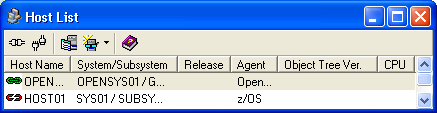
The Host List window opens.
The Host Definition dialog opens.
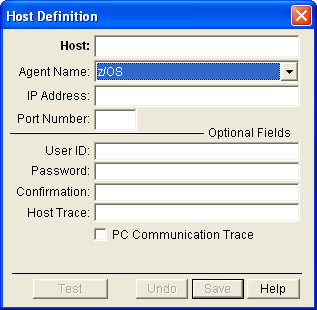
Specifies the name of the host to which you want to connect.
Indicates the host type of the system you are defining the connection for.
Specifies the IP address or the server name of the host to which you want to connect.
Specifies the port number of the host to which you want to connect.
(Optional) Specifies a user name to use to connect to the host. If you do not specify a user name, you must supply it each time you connect to the host.
Note: The user name is encrypted before being sent to the host.
(Optional) Specifies the password for the user given in the User ID field. If you supply a user name but do not specify a password, you must supply it each time you connect to the host.
Note: The password is encrypted before being sent to the host.
Required only if you supplied a password in the Password field. Re-enter your password.
(Optional) Given a proper value, creates a trace of all the messages exchanged between the host and the Windows Client, which is used by Technical Support for debugging purposes. The trace messages are written to the MSGExxxx DDname of the CA Vantage started task on the z/OS host. Available only for z/OS hosts.
Enter the value "EWS10T" to enable the trace.
Note: The trace is automatically disabled each time the Windows Client starts.
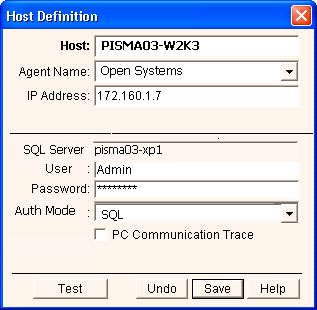
Specifies the name of the host to which you want to connect.
Indicates the host type of the system you are defining the connection for.
Specifies the IP address or the server name of the host to which you want to connect.
Specifies the name of the SQL Server instance.
Note: This field is non-editable.
Specify the user name to connect to SQL Server database
Specify the password to connect to the SQL Server database.
Select one of the authentication modes – SQL Server or Windows authentication.
(Optional) Saves messages relating to host-client communication in a log file. The log file has the same name as the host and has a .DAT suffix. It is created in the CASRM Data\Database\Log directory on the computer where the Windows Client is installed. The PC Communication Trace is available for both Open Systems and z/OS hosts.
Note: The trace is automatically disabled each time the Windows Client starts.
A dialog notifies you that the connection is tested and is working.
This test confirms that the information you provided is correct.
The information is saved and the CA SRM Host Definition dialog closes.
CA SRM connects to the host.
|
Copyright © 2016 CA Technologies.
All rights reserved.
|
|