

After CA SRM is installed and running, follow the steps listed below to start the CA SRM components:
From the Home Page, you can easily access CA SRM components by selecting one of the links displayed. News and support links provide new information in the current product release as well as easy access to the latest patches and downloads:
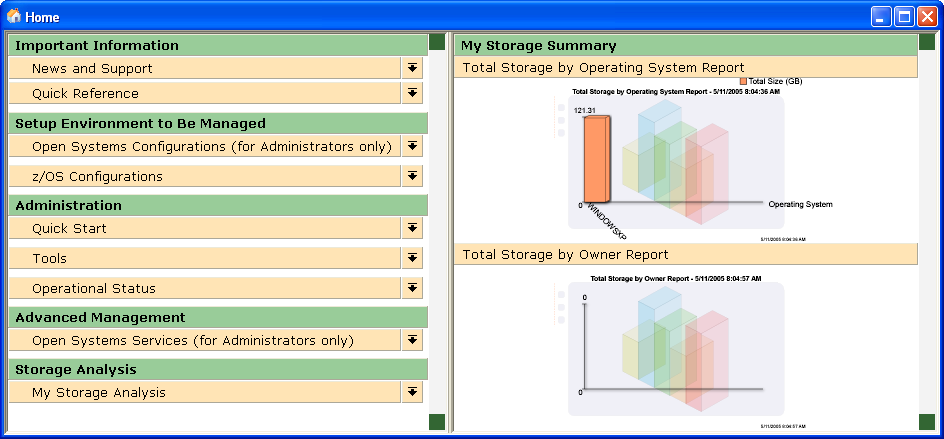
Use the CA SRM Quick Start link to access User Manager, Host List, and Object Tree, all of which are tools you use to perform basic administrative storage management tasks.
You define host parameters for the Host Configuration Client when you access the z/OS Configurations link. You can register system components in your network infrastructure that use CA SRM by accessing the Open Systems Configurations link. A link for scheduling tools is also provided.
The My Storage Analysis link expands into a dashboard-like display view of high-level, business-oriented information on the storage environment:
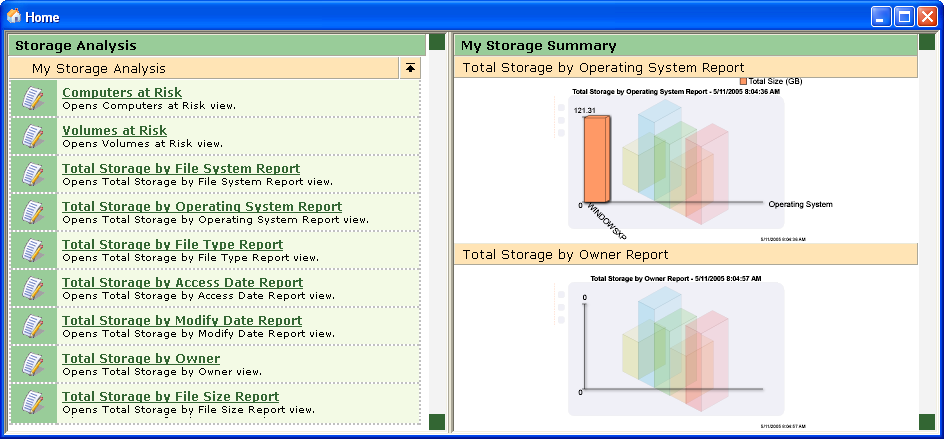
You can select from a selection of high-level views that show computers or storage volumes at risk, or you can select from standard report views to monitor your volume and file data. An owner view lets you see total storage including the number of files and size.
You can drill down further from the high-level views to the granular underlying data objects by double clicking or choosing the Zoom option. To customize the My Storage Analysis view or to add another user view, simply select the Tools menu, and then Options. In the CA SRM Options dialog, select the My Storage Analysis tab. Double-click an available user view from the network storage list. Your new user view is added to the list of views in My Storage Analysis on the refreshed Home page.
Use the CA SRM Object Tree to view and manage CA SRM objects and services on z/OS and Open Systems hosts. CA SRM includes standard Open Systems and z/OS object categories and objects, which correspond with the object categories and objects for your enterprise's Open Systems and z/OS hosts:
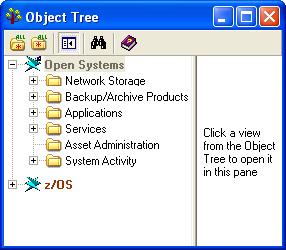
By default, CA SRM automatically defines an Open Systems host for the Windows Client that is installed on the Application Server machine. Before you can begin working with any host's data, however, you first need to connect to one of the hosts in the CA SRM Host List.
|
Copyright © 2016 CA Technologies.
All rights reserved.
|
|