

Some objects have an information area defined by the factory. If an object has an information area defined, then when you open that object a separate information area (Info Area) window is displayed above the object in the Windows Client, as shown in the following sample:
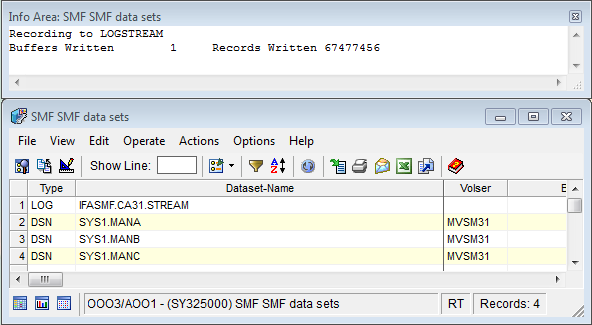
This Info Area window contains general information about the entire object that has not been repeated in every row, or contains information not appropriate to include in every row. For example, consider an object that displays the members in a specific PDS and the attributes of each of those members. Each row describes a single member in the library. In order to provide the name of the PDS data set itself, the name can be repeated in each member row, or presented just once in the Info Area. Another use of the Info Area is to provide summary information about the rows.
If you close the Info Area window by clicking the close window button ( ) in the top right corner of the Info Area window then the View Info Area icon will appear on the Table View toolbar. You can select this icon to reopen the Info Area Window. When the Info Area window is displayed the View Info Area icon is not available.
Note: To see an explanation of the information displayed in the information area window, open the Help About Object online help system from the object's toolbar.
|
Copyright © 2013 CA.
All rights reserved.
|
|