

The default view for the Windows Client is Table view. Table view displays objects in configurable tables. You can change display characteristics (such as the width and number of table columns, the number of rows displayed, and so on) and characteristics that apply to specific objects, such as sort and filter criteria. The display and object-specific characteristics determine the appearance of the table. When you save your changes to the view, you automatically save those changes (filters, sorts, and so on) and the object characteristics.
The following is a sample of the Table view of the z/OS Storage Groups object:
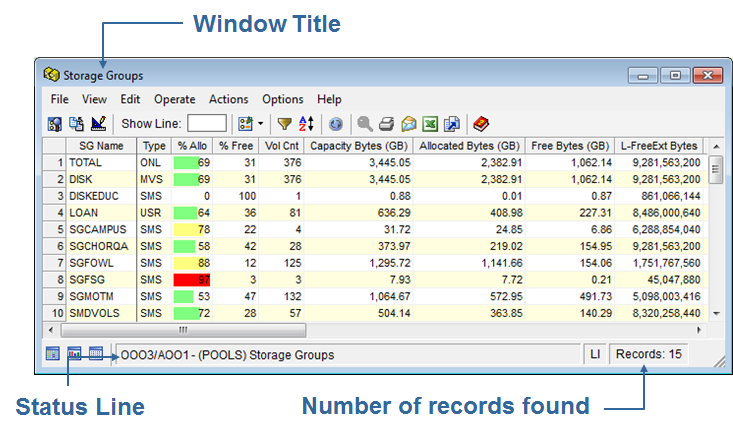
The window title identifies the source object name or the User View name. The status line shows the name and description of the host system and subsystem from which the data is derived. For user-defined views, the status line also shows the view name and description. The number of records found displays at the far right of the status line.
Rows and columns of information about storage management objects make up the body of the table. Each row corresponds to an object instance and is numbered in ascending order along the left edge of the window. Each column displays information about a particular attribute of the object. The first column of the table, generally containing the name of the records, remains in view while you scroll the table columns horizontally.
Note: A few objects displayed in a Table view may render the first field of data too wide, making the viewing of successive fields impossible. If this occurs, use the Automatic Column Adjustment feature to reduce the field width to facilitate viewing the entire table.
The Windows Client simultaneously displays both the object tree and object view in two ways; single-pane or double-pane modes. Choose the mode that best suits your needs.
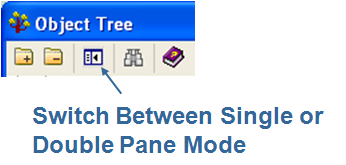
To switch between single or double pane modes click the icon in the Toolbar of the Object Tree window:
|
Copyright © 2013 CA.
All rights reserved.
|
|