

In addition to the default views of each source object, you can create customized User Views of the objects. A User View is a user-customized collection of information about a specific object belonging to a host (z/OS or Open Systems). A User View represents a modification to the default view of an object. A User View typically includes filter and sort criteria, and displays only a subset of the fields, perhaps in a re-arranged order.
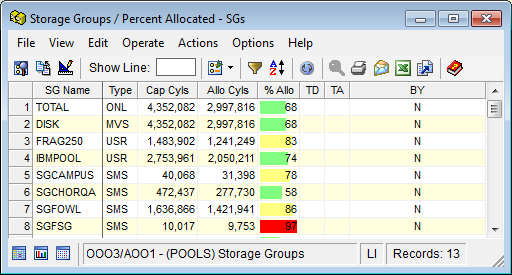
A sample User View displayed as a table is shown in the following example. The Windows Client includes a comprehensive set of standard User Views. However, you can also modify existing views or create new ones, to serve your specific needs.
Note: For detailed information regarding how to configure and manage User Views see the chapter “User Views."
There is also a User-Defined View List option which you can use to manage User Views within a single window. The User-Defined View List option provides a complete list of all your User Views, including factory supplied User Views. The User View list can be printed or exported to Excel. A User View can be opened by selecting a line and then clicking the Open View icon on the tool bar. If you are unsure of where the view is located in the Object Tree then you can select a User View in the list and click the Find View in Object Tree icon. By right clicking a User View in the list you are able to delete it, rename it, or save it as a new User View.
You can invoke the User-Defined View List option by clicking the User-Defined View List icon on the Windows Client main menu tool bar or by selecting the User-Defined View List option from the Windows Client main menu Tools Menu option.
|
Copyright © 2013 CA.
All rights reserved.
|
|