

The Policy Server uses the session store to persist dynamic user information after a user is authenticated. The stored information includes authentication context information, SAML attributes, third-party IdPs that authenticate users, and claims from an OAuth authentication. The Policy Server can use this information for generating user tokens or making policy decisions.
For federated single sign-on, the Policy Server can add the attributes from the session store to an assertion to customize the requested application.
Session attributes are stored for the following deployments:
A local system or an external third party authenticates users, but the system regards it as a local authentication. Local authentication deployments require that the authentication mode is local in the single sign-on configuration. Also, an access policy must protect the authentication URL. The authentication scheme in the policy is configured to persist session attributes.
An external third party can authenticate a user. The third-party partner returns user information, which gets stored in the session store.
The following figure shows the steps that are required to configure session attributes and add then to assertions.
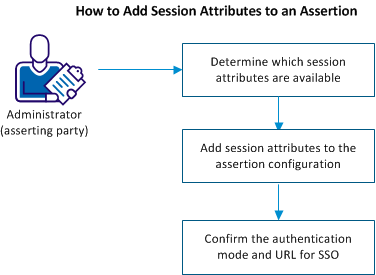
Complete the following steps for session attribute support:
As the federation administrator, identify the session attributes used by the partnership. Work with the authentication source, such as a database or user directory so you are familiar with the available attributes.
Add session attributes to the assertion configuration. The configuration is at the asserting party, such as the IdP-to-SP partnership.
Follow these steps:
IssuerID
SSO
Unspecified
Session Attribute
IssuerID
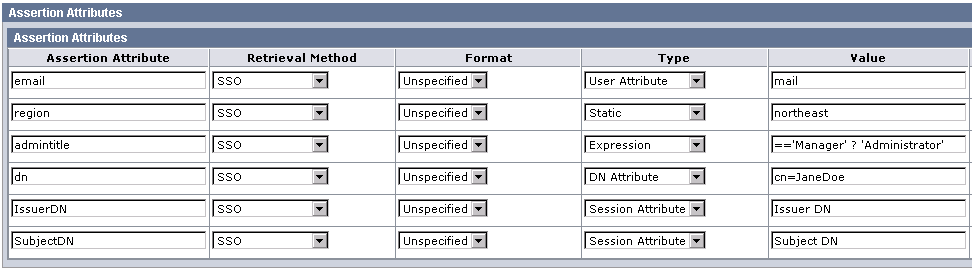
Click Help for detailed information about the attribute table.
The last two entries of the following graphic show examples of session attribute entries. This screen is for a SAML 2.0 partnership. The SAML 1.1 screen is similar, but the Retrieval Method and Format columns are missing. A Namespace column exists instead.
Confirm that the partnership has the authentication mode and authentication URL set correctly.
Note: This procedure assumes that the other necessary SSO settings are configured.
Follow these steps:
Local
This URL must point to the redirect.jsp file, for example:
http://myserver.idpA.com/siteminderagent/redirectjsp/redirect.jsp
Identifies the web server with the Web Agent Option Pack or the SPS federation gateway. The redirect.jsp file is included with the Web Agent Option Pack or SPS federation gateway that is installed at the asserting party.
|
Copyright © 2013 CA.
All rights reserved.
|
|