

This section contains the following topics:
How to Configure Failover with SSL Enabled
Maintain the Same Configuration for Each System
Failover support ensures that CA SiteMinder® Federation Standalone is not a single point of failure in your federated network. Failover builds redundancy into your network by configuring a primary and secondary CA SiteMinder® Federation Standalone system. If the primary CA SiteMinder® Federation Standalone system fails, the back-up system can perform the necessary federated communication.
Failover can be configured for CA SiteMinder® Federation Standalone acting as the asserting party and the relying party.
Note: If you enabled the CA SiteMinder® Connector, failover support is available for the Connector registration process. Instructions are described in the section Configure the CA SiteMinder® Connector.
The following figure shows a CA SiteMinder® Federation Standalone deployment with failover. If the primary system fails, transactions are directed to the secondary system.
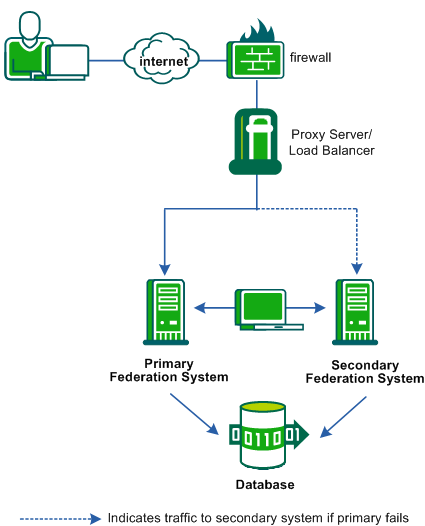
As shown in the previous figure, CA SiteMinder® Federation Standalone is installed on two machines that use the same database.
Configuring failover requires the following tasks:
We recommend that you configure each federation system before configuring failover for the proxy server or load balancer.
Important! If you plan to use SSL for federation services, follow the instructions for an SSL-enabled failover environment.
To enable failover in a federation deployment, a primary and a secondary CA SiteMinder® Federation Standalone system must be installed and configured.
For SSL-enabled failover environments, follow the instructions to enable SSL for a failover environment.
Important! For Solaris platforms, treat Solaris zones as phyical machines. Install and configure separate CA SiteMinder® Federation Standalone instances in each zone. CA SiteMinder® Federation Standalone does not support failover from one zone to another for a single instance because the zones have different Host IDs.
Follow these steps:
Note: The product can run in standalone or proxy mode, but the primary and secondary server must use the same mode.
If CA SiteMinder® Federation Standalone uses more than one virtual host or domain, modify the server.conf file to include all entries.
To modify the server.conf file
<VirtualHost name="default">
hostnames="defaultbaseurl.example.com:80, newbaseurl.example.com:80"
</VirtualHost>
Note: Specify multiple host_name:port entries for the hostnames setting, separating each entry with a comma.
Example:
<VirtualHost name="default"
hostnames=lb5.example.com:80
</VirtualHost>
Both CA SiteMinder® Federation Standalone systems are pointing to the same database. A proxy server or load balancer can be set up to failover from the primary system to the secondary.
You can direct a proxy server or load balancer to failover to CA SiteMinder® Federation Standalone.
Note: The administrator of the proxy server or load balancer must know how to set up failover for the system in the deployment.
Follow these steps:
Do not configure load balancing for the systems.
These URLs enable the proxy server or load balancer to balance traffic between the CA SiteMinder® Federation Standalone systems.
The proxy server or load balancer is now configured.
|
Copyright © 2014 CA.
All rights reserved.
|
|