Preparing your Web Server › Preparing your SharePoint Server Roadmap › Use Fully-Qualified Domain Names for All your SharePoint Sites
Use Fully-Qualified Domain Names for All your SharePoint Sites
All the SharePoint sites that you want to protect with CA Technologies SiteMinder require fully qualified domain names.
To set your SharePoint sites to use a fully qualified domain names
- Click Start, Programs, Microsoft Office Server, SharePoint 3.0 Central Administration.
The Central Administration page appears.
- Click the Operations tab.
A list of tasks appears.
- In the Global Configuration section, click Alternate Access Mappings.
A list of web sites appears.
- Locate your SharePoint site. Examine the URL listed in the Public URL for Zone column on the right and verify that it uses a fully qualified domain name.
Note: my_web_site.example.com is an example of a fully qualified domain name.
- If the URL in Step 3 does not use a fully qualified domain name, do the following:
- Click the Alternate Access Mapping Collection drop-down list, and then select Change Alternate Access Mapping Collection.
A list of Alternate Access Mapping Collections appears.
- Click the link for your SharePoint site.
The Alternate Access Mappings screen shows only those sites in your collection.
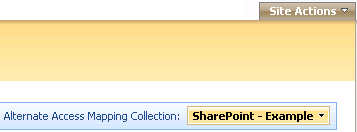
- Verify the name of the SharePoint site you want to protect appears in the drop-down list, as shown in the following example:
- Click Edit Public URLs.
The Edit Public Zone URLs screen appears.
- Edit the URLs to include a fully qualified domain name.
- Click Save.
The URL shown in the Public URL for Zone column appears with a fully qualified domain name.
- Repeat Steps 2 thorough 5 for each SharePoint web site you want to protect with SiteMinder.
|
Copyright © 2010 CA.
All rights reserved.
|
|

