

|
|
|
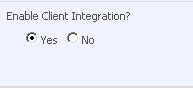
The SiteMinder Agent for SharePoint supports the Office Client Integration feature of Microsoft SharePoint. Unless your SharePoint server is behind a reverse proxy server, the Agent for SharePoint automatically determines whether or not Office Client Integration is allowed according to the setting in the SharePoint Central Administration UI. For reverse proxy servers, you must add the web applications you want to protect to the Agent Configuration object manually.
When Office Client Integration is allowed, the Agent for SharePoint places a persistent cookie, named SPSESSION on the hard disk of the user. This cookie allows users to access Office documents on the SharePoint server without challenging them for their credentials again (until the SiteMinder session associated with the SPSESSION cookie expires).
Note: If the security policy of your organization prohibits persistent cookies, you can still use Office Client Integration with the SiteMinder Agent for SharePoint in some limited situations.
To verify your office client integration settings
The Central Administration screen appears.
The Application Management screen appears.
The Authentication Providers screen appears.
The Edit Authentication screen appears.
| Copyright © 2010 CA. All rights reserved. |
|