

In this example, Forward Inc. is an MSP that provides finance, operations, and sales IaaS solutions for customers. Forward Inc. has already modeled several services to monitor their network. To ensure the highest level of service for their clients, Forward Inc. now wants to see how alerts on their modeled services impact specific clients. The clients are represented as customers in CA SOI. Forward Inc. Operators are assigned to monitor different services and customers and are provided service and customer access accordingly. The Admin Operator has access to all services and customers.
Forward Inc. provides three service levels: Bronze, Silver, and Gold. Clients who pay for Bronze service are provided the minimum service level and Gold provides the highest service level.
Identify Services
Services Available: Finance, Operations, Sales
The administrator models the three services that are based on the network for each IaaS offering as shown in the following graphic:

The administrator models the Finance and Operations services with two computer system CIs. Similarly, the administrator models the Sales service with three computer system CIs. The modeled services are shown in the following graphics:
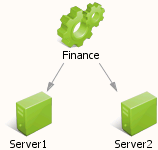
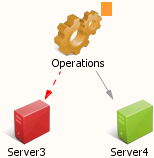
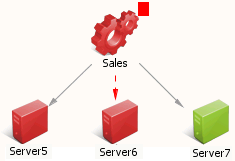
Your company's service models are obviously more complex than the models provided in this example. You employ the techniques found in the Service Modeling Best Practices Guide such as propagation policy, CI significance, and complex relationships. However, for our demonstrative purposes, we are using simple service models and not delving into the particulars of each service model. Our focus is on the service alerts and how they impact customers of those services.
Identify Customers and Priorities
Customers: Company-A, Company-B
Forward Inc. has two clients that use the IaaS solution services. The administrator plans to create two customers in CA SOI, Company-A and Company-B, to represent these two clients. Company-A has paid a premium for a higher service level, so the administrator will assign a higher customer priority to Company-A.
Company-A uses the Finance and Operations IaaS solutions and Company-B uses the Operations and Sales IaaS solutions, so the administrator will assign the services as follows when creating the customers:
Company-A: Finance and Operations services
Company-B: Operations and Sales services
Company-A pays for the Gold service level and Company-B pays for the Bronze service level.
An administrator could elect to create sub-customers also. For example, Company-A and Company-B could have sub-customers that represent specific divisions of each client's company. If different divisions used different solution products (or a combination of solution products), an operator could see how alerts impact a specific division. However, for this example, we will use customers only.
Create User Groups
The administrator creates two "Operator" user groups, Operator1 and Operator2 in the Users tab. The users assigned to these user groups are operators that monitor customers. The administrator will assign the customers to Operator1 and Operator2 when using the wizard to create the customers.
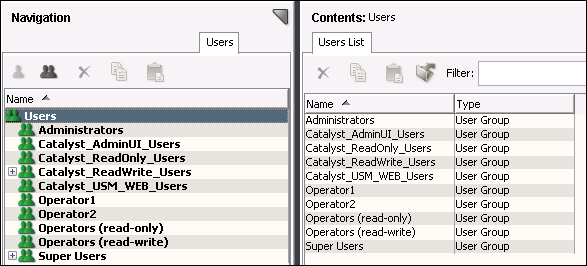
The administrator would also assign one or more users to the Operator1 and Operator2 user groups. However, for simplicity in this example, we refer to the users as the Operator1 user and Operator2 user. Remember that these user groups include all users assigned to them.
The administrator also uses the Users tab to ensure that each user group has access to the services they monitor as described in the previous section.
Create Customers, Assign Services, and Assign User Groups
The administrator creates the customers, Company-A and Company-B, and assigns the operator user groups as follows:
Operator1: Company-A customer
Operator2: Company-A customer, Company-B customer
Operator1 will monitor the service for the Company-A customer and Operator2 will monitor the services for both the Company-A and Company-B customers.
Note: Operator1 has permissions to the services (which are Finance and Operation services) of Company-A. Operator2 has permissions to the services (which are Finance, Operation, and Sales services) of Company-A and Company-B. Permissions to the services are given from the Services or Users tab. For more information, see the "Configuring Role-Based Security" section in the Administration Guide.
The administrator launches the Create New Customer wizard and completes the Define Customer screen with the Company-A information as shown in the following graphic:
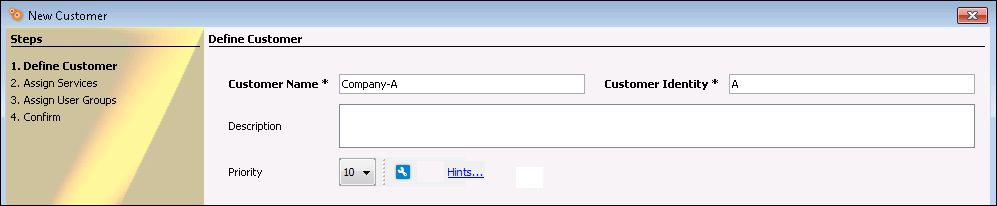
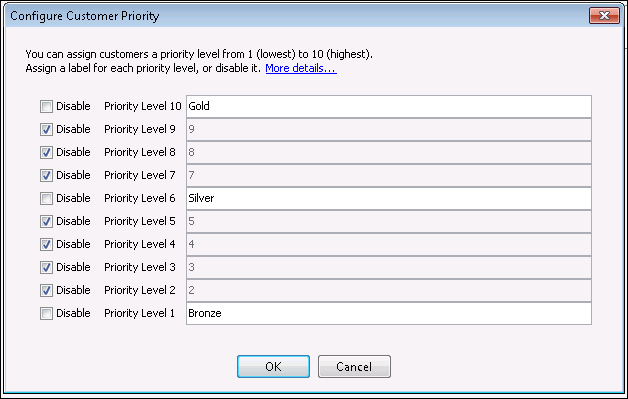
The customer Priority should reflect the Gold, Silver, and Bronze service levels. Therefore, the administrator will modify the Priority Levels to create more meaningful drop-down list labels. The administrator launches the Configure Customer Priority dialog and sets the following Priority Level labels:
The administrator disables the unused priority levels. The completed dialog is shown in the following graphic:
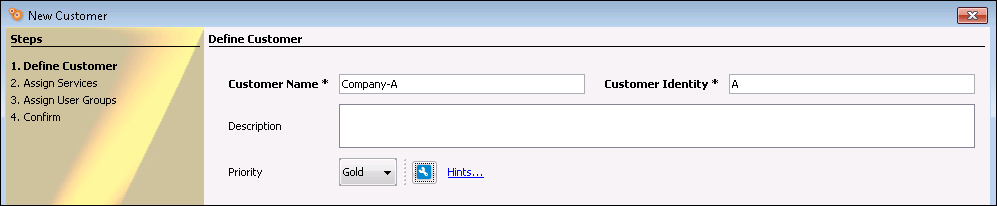
The administrator now sees the Company-A customer with the priority label Gold as shown in the following graphic:
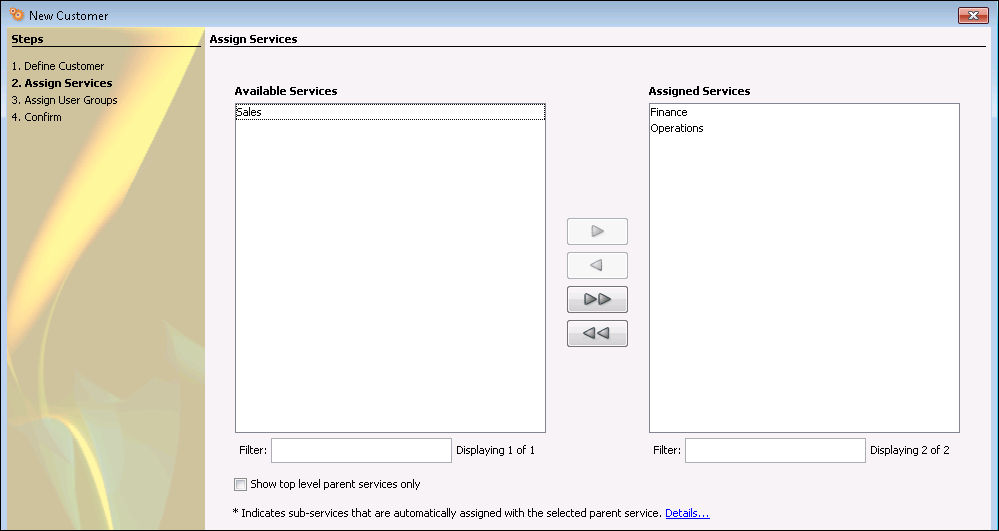
The administrator then assigns the Finance and Operations services to Company-A as shown in the following graphic:
The administrator assigns the Operator1 user group to the Company-A customer in the Assign User Groups screen as shown in the following graphic:
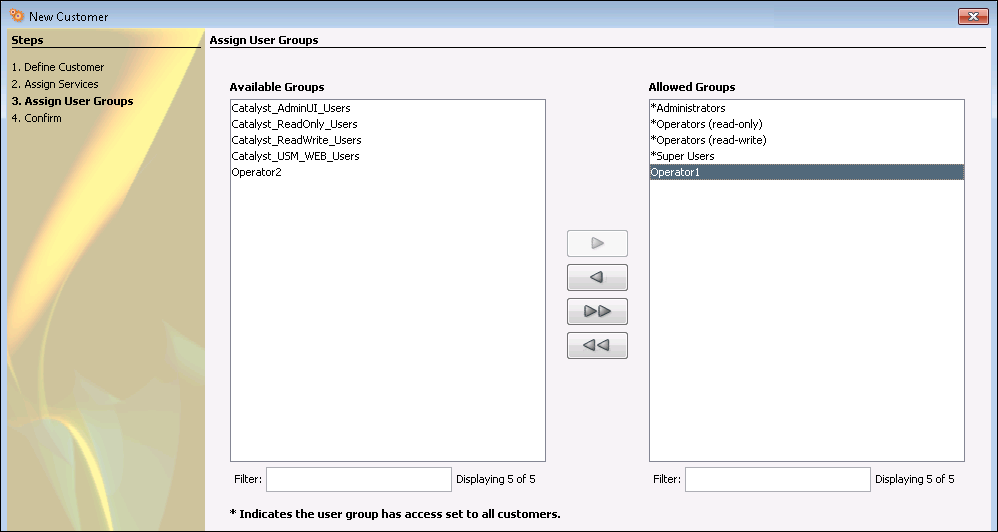
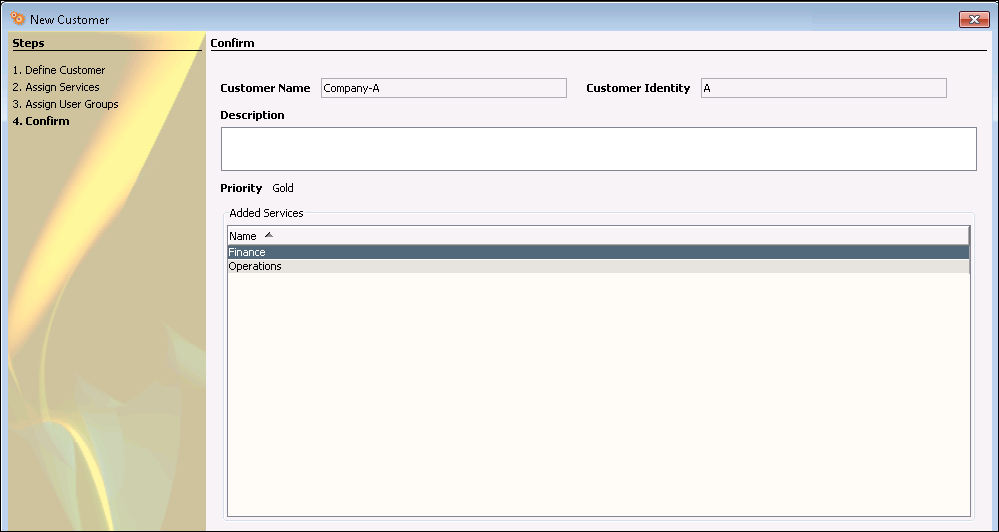
The administrator reviews the Company-A customer information in the Confirm screen and completes the customer creation.
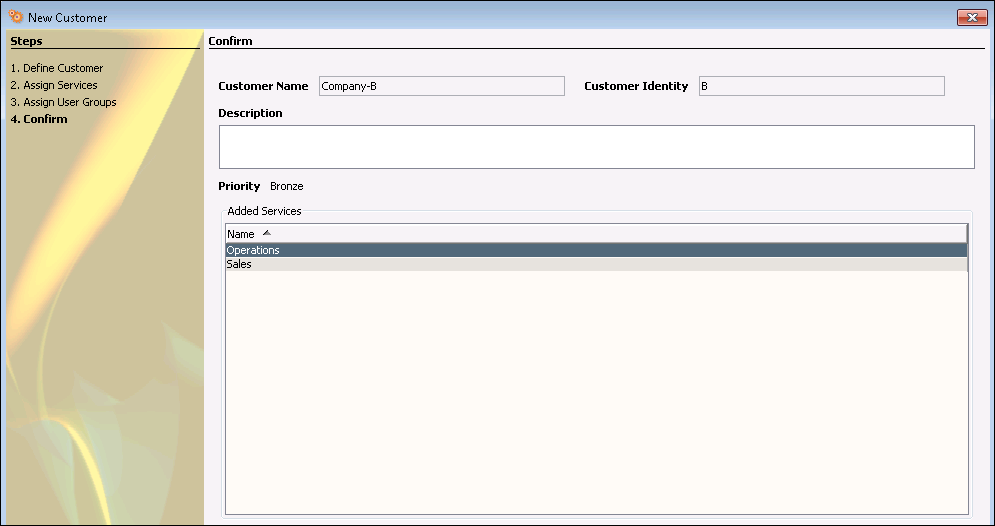
The administrator uses the same process to create the Company-B customer as shown in the Confirm screen. The administrator assigns the Operations and Sales services and sets the Priority to Bronze. The Confirm screen is shown in the following graphic:
View Alerts on Customers
The administrator clicks the Customers tab and selects the parent Customers node in the customer tree, then clicks the Alerts tab in the Contents pane. The Alerts tab displays all alerts on the Company-A and Company-B customers as shown in the following graphic:

The administrator then selects the Company-A customer in the Navigation pane and clicks the Information tab to view the health status. The health status is Major as shown in the following graphic:
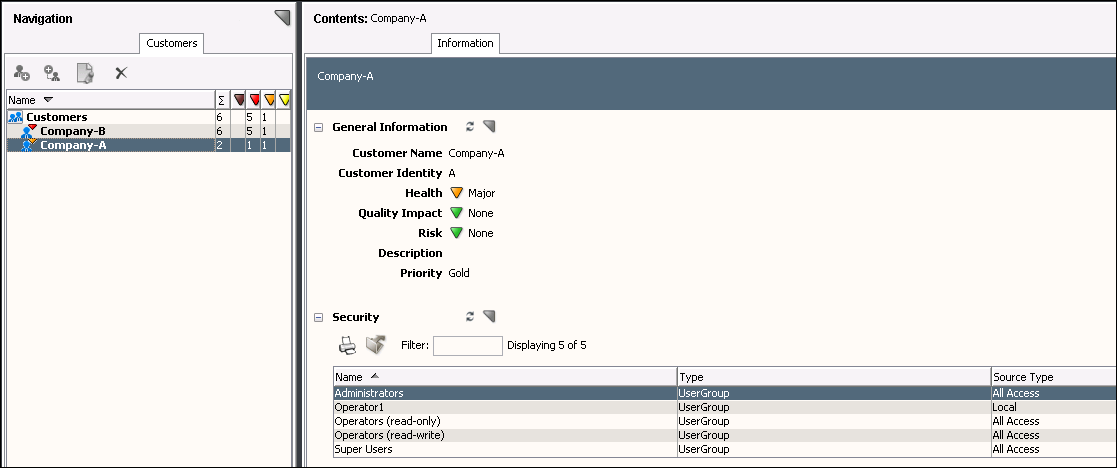
Remember that the customers available to a user depend on the user group the user is assigned to and that user group's customer assignment. Because the administrator has access to all customers and services, the administrator sees both Company-A and Company-B customers on the Operations Console. If an Operator1 user logs in to the Operations Console, the user sees only Company-A. The administrator assigned both Company-A and Company-B to the Operator2 user group, so an Operator2 user sees both the Company-A and Company-B customers.
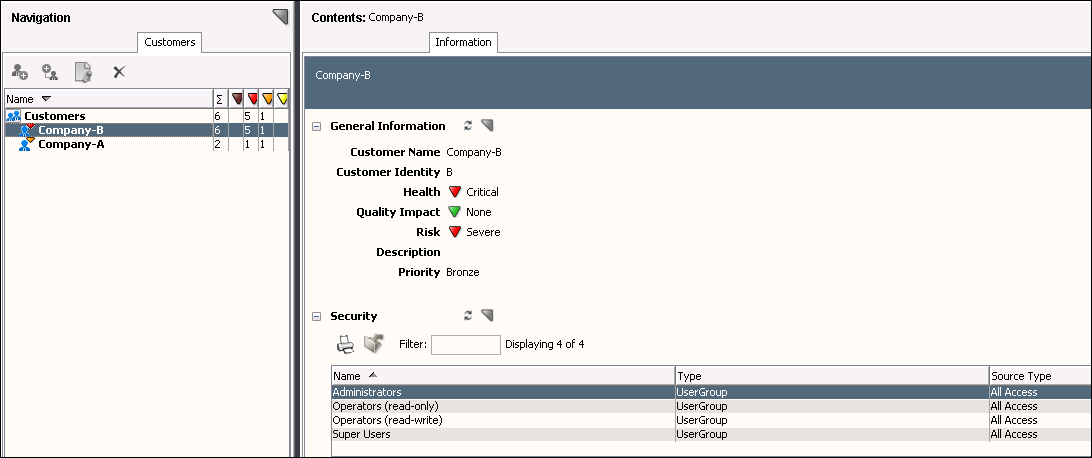
The administrator then views the Information tab for the Company-B customer, which shows a health status of Critical as shown in the following graphic:
Create Alert Queues Using Customer Attributes
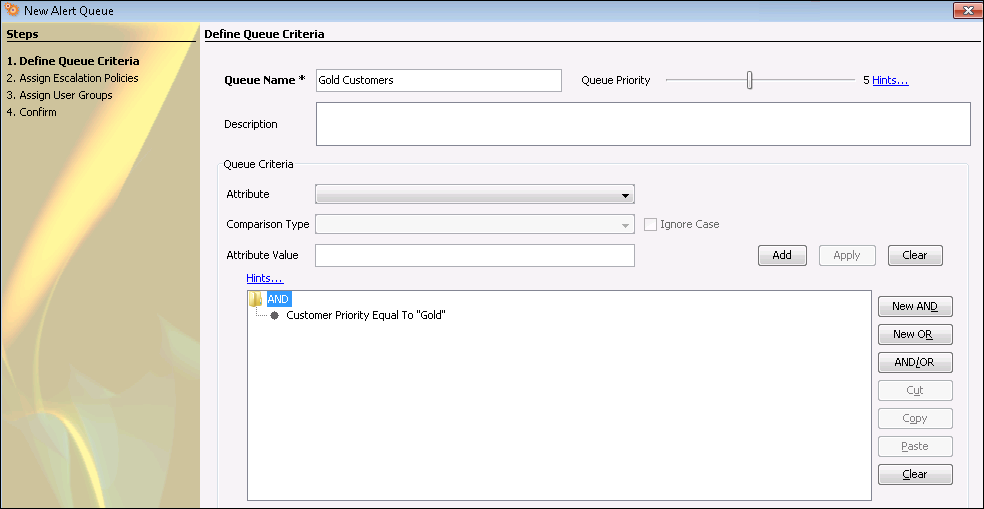
The administrator wants to create an alert queue named "Gold Customers" that shows the alerts on all Gold service level (priority) customers. The administrator launches the New Alert Queue wizard and defines the queue criteria where the Customer Priority attribute is equal to the Gold level. The completed Define Queue Criteria screen looks like the following graphic:
The administrator clicks the Alert Queues tab on the Operations Console, clicks the Alerts tab in the Contents pane, then clicks the Customer Impact tab in the Component Detail pane. The Operations Console appears like the following graphic:
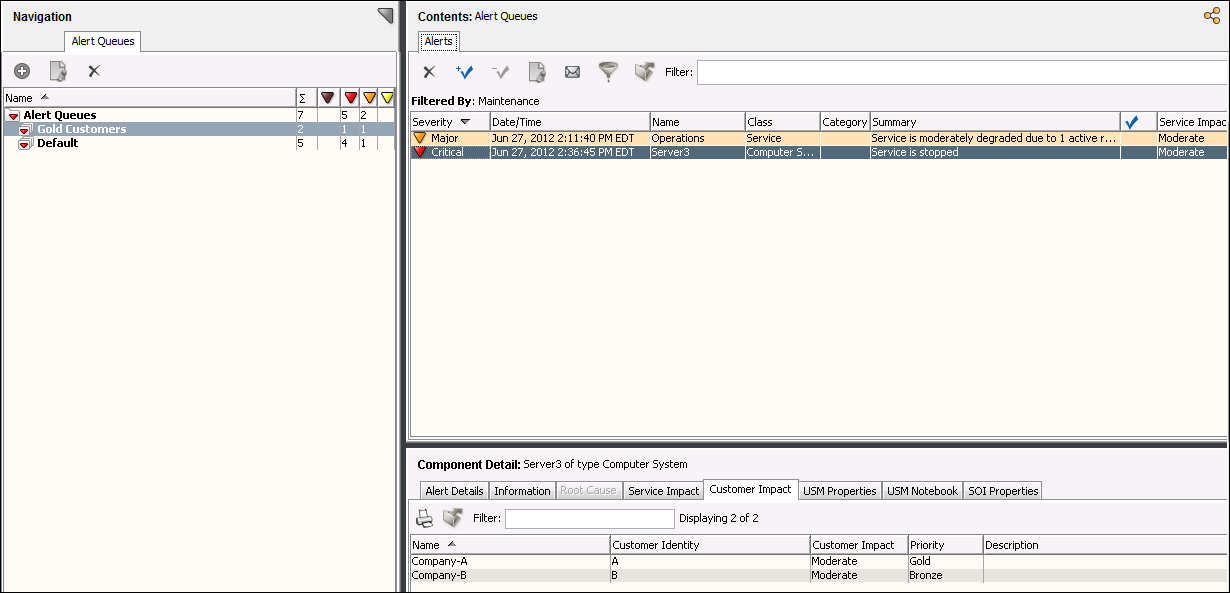
In this example, only the Company-A customer has a Gold customer priority, so only its alerts appear in the new Gold Customers alert queue. If the administrator adds a customer, say Company-C, with a Gold customer priority, its alerts dynamically appear in the queue.
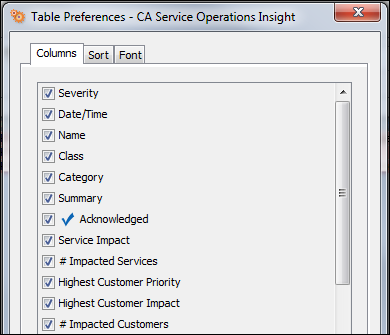
The administrator adds additional columns to the Alerts tab by right-clicking a column heading and selecting Highest Customer Priority and Highest Customer Impact. The completed dialog is shown in the following graphic:
The administrator can then sort the Alerts tab by these columns also. For example, the following graphic shows that the administrator is sorting the Alerts tab first by Highest Customer Priority and then by Highest Customer Impact.
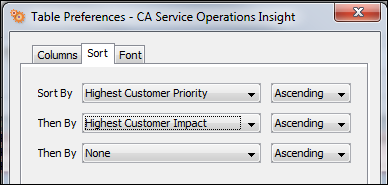
This sort would show the highest customer impact on Gold service level customers.
Create Escalation Policy Using Customer Attributes
The administrator also elects to use the customer attributes to create escalation policy. The administrator launches the Alert Escalation Policy Editor and uses the following attributes: Customer Priority Equal to "Gold" AND Customer Impact Greater Than or Equal To "Moderate".
The completed Attributes tab is shown in the following graphic:
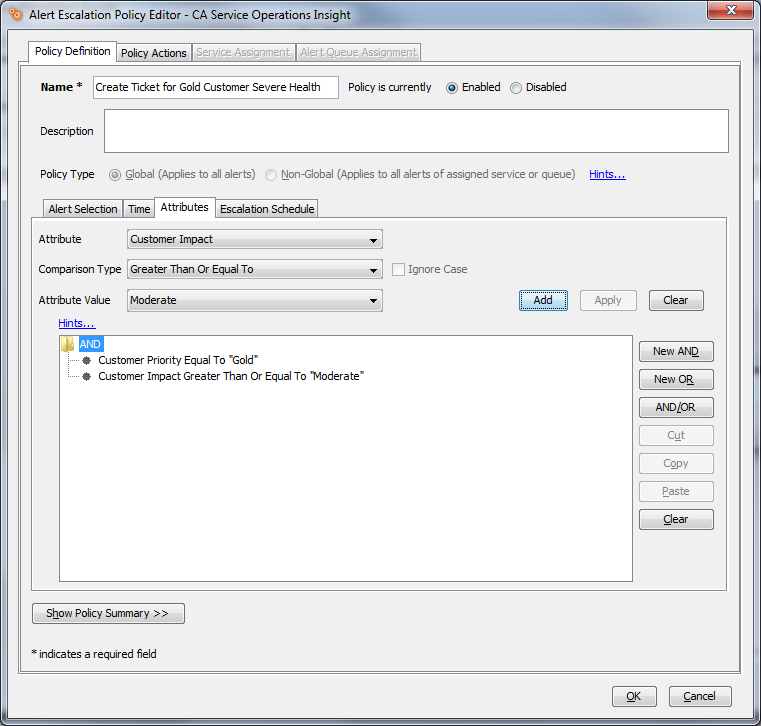
The administrator then creates a Policy Action that automatically creates a help desk ticket when the policy conditions are met.
|
Copyright © 2013 CA.
All rights reserved.
|
|