Activate the Inbound Web Service

After you activate ZCA_SD_WS, you configure the web service to verify that the connection completed successfully.

  1. Execute transaction /nSICF and do the following:
    1. Verify that all parent services are active for the following tree:
      /sap/bc/srt/rfc/CASD/CA_SD_WS/
      
    2. Select a service, right-click the service, and select Activate Service.

      The following example shows the web service tree:
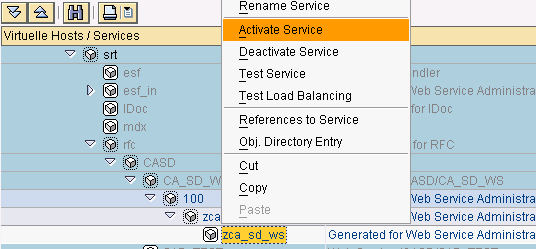
      Shows the web service tree and the Activate Service option on the service shortcut menu

      Click Yes from the prompt.

      The service is activated and ready for testing.

  2. Execute transaction /nSOAMANAGER.

    The transaction launches your web browser and the SOA Management page appears.

  3. On the Technical Configuration tab, click System Global Settings.

    The System Global Settings page appears.
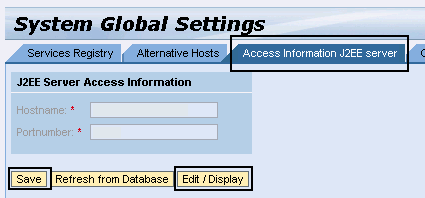
  4. Contact your SAP administrator to confirm the SAP hostname and port number.
  5. On the Access Information J2EE server tab, click Edit / Display to enter the SAP host name and port number (if these fields are not already populated) as shown in the example and click Save.

    Shows the hostname and port number on the J2EE Server Access Information tab and save button

    The J2EE server is saved.

  6. Verify that the following web service is running:
    /sap/bc/srt/rfc/CASD/SD_ADAPTER_WS
    
  7. On the Business Administration tab in SOA Management, click Web Service Administration.

    The Web Service Administration page appears.
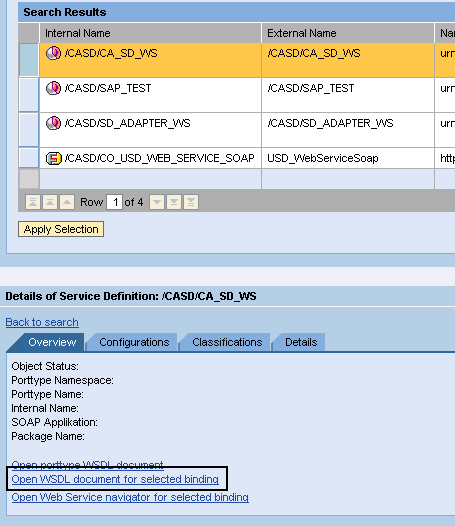
  8. Select the /CASD/CA_SD_WS service and click Open WSDL document for selected binding on the Overview tab of the Details of Service Definition page, as shown in the following example:

    Shows the Open WSDL link on the overview tab of the web service

    The WSDL document appears in your web browser.

  9. Copy the URL from the Address Bar to your text editor. For example, the link can appear as follows:
    http://sapdev:8000/sap/bc/srt/wsdl/bndg_DE2DD378D6C687F1B94D005056B04977/wsdl11/allinone/ws_policy/document?sap-client=100
    
  10. On the Overview tab of the Details of Service Definition page, click Open Web Service navigator for selected binding.

    The SOAMANAGER authentication prompt appears to log in to Web Services Navigator.

  11. Log in as the user j2ee_admin.

    The Web Services Navigator appears.

  12. (Optional) Complete the following steps in the Web Services Navigator:
    1. Enter the WSDL URL of the web service that you copied, and click Next.
    2. Log in with the CASD_RFC_USR user you previously created.

      The Web Services Navigator Overview page appears.

    3. Click Test.
    4. Execute the sapTest operation, as shown in the following example:
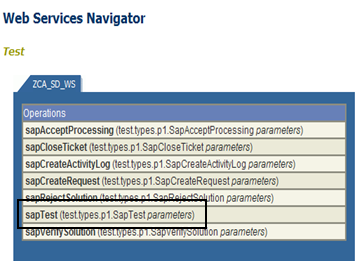
    Shows the sapTest operation that you execute

    The product tests the web service connection.

    1. Enter any value in the RequestMessage prompt, such as 000.

      The system responds to your 000 request with a message such as "Hello World", as shown in the following example:
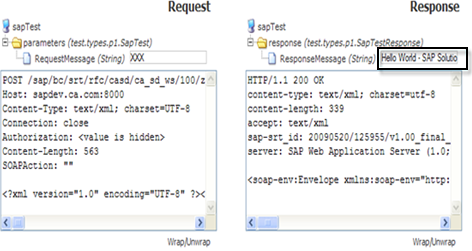
      Shows the sapTest response

      This response confirms that the inbound services are properly connected.

    This WSDL is ready for use with CA Service Desk Manager.


Copyright © 2010 CA. All rights reserved. Email CA about this topic