

You can add different types of attachments to the various CA SDM entities. For example, a customer can attach a snapshot of an error to the incident. As an administrator, you set up the attachments library from where users can upload or download attachments.
Attachments can be classified, as follows:
The following diagram shows how to set up an attachments library:
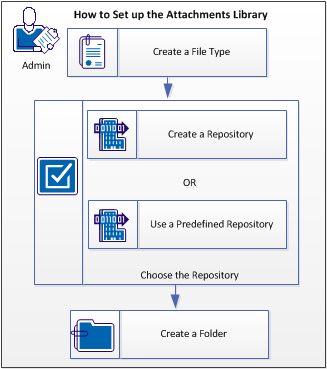
Follow these steps:
Log in to the web UI from the following servers, depending on your CA SDM configuration:
CA SDM provides predefined file types that can support the attachments. For example, the predefined file type, Adobe Acrobat supports the pdf file formats as attachments. You can also create file types. For example, create JPEG file type for users to upload snapshot for an incident.
Follow these steps:
The File Type List page opens.
The Create New File Type page opens.
Specifies the file type or identifies the associated software application, for example Word document, Image, Executable.
Specifies the characters appended to the base filename that identify the file type. For example, the extension doc identifies a Microsoft Word document.
Specifies the name of the graphic file that contains the icon to be used to identify this file type.
Indicates whether the record is active in the database and available for use.
The file type is created.
The attachments are stored in repositories and you required to set up the repositories before users can work with attachments. You can add as many repositories to best suit your organization needs. For example, you might add separate repositories to store the file attachments and images. You can also add folders to your repositories to further organize your files, then upload files to the appropriate locations.
All client interfaces can access existing repositories for the upload and download of file attachments except as follows:
The distributed architecture lets a site configure their repositories according to their needs. The servlet for a repository does not have to reside on the same server as the attached files. Sites can have a central servlet to access all their distributed repositories or have a dedicated servlet for each of their repository servers.
Consider the following setups when configuring repositories:
CA SDM provides predefined repositories and also lets you create your own repositories to best suit your organization needs. Choose from the following options:
By default, the repositories are located on the following server, depending on your CA SDM configuration:
The default repositories use both the servlet and the repository daemon (rep_daemon) from these servers. To create a repository on a remote computer you must install and configure the following servers, depending on your CA SDM configuration:
In the advanced availability configuration, the rep_daemon runs on all the servers, by default.
In the conventional configuration, the rep_daemon runs on the primary server, by default and you are required to verify that the rep_daemon runs on the secondary server for this setup.
(Conventional configuration only) Follow these steps:
The Configuration List page opens.
The Configuration Detail page opens.
The Additional Process List is displayed.
The repository is set up on the secondary server.
Depending upon your organization needs, you can have one large repository or several small ones. Moving or combining repositories is simple because all the attributes about a repository are defined in the repository record.
Follow these steps:
The Repositories page opens.
The Create New Repository page opens.
Note: If you are the service provider, select the appropriate tenant from the Create New Repository page. The public (shared) option makes the repository available for all tenants.
The repository is created.
You can use a predefined repository (Service Desk or Knowledge or Images). You can edit a repository to best suit your organization needs.
Follow these steps:
The Repositories List page opens.
The Update Repository page opens.
The repository definition is saved.
The following fields are used to edit or create a repository.
Specifies the name to uniquely identify the repository. For example, Incident Images repository can store all the images that are related to an incident.
Indicates the type of content that is stored in the repository. For example, to store image attachments, select Images.
Indicates whether this is the default repository for the specified repository type. For example, when the user is creating the incident and user wants to attach an attachment to the incident, the default repository is displayed for the selection. You can only set one repository to default.
Specifies the maximum size of file, in kilobytes, that a user can upload to the repository.
Specifies the full root directory path or the UNC path where files uploaded to the repository reside.
Specifies the credentials to access the UNC path specified in the Upload Path field. Click UNC Credentials to open the Credentials Search page.
Specifies the background server services for the servlet path and rep_daemon.
Indicates that the background server is not used for the servlet path or for the rep_daemon. If you select this option, enter the values for Servlet Server and the Repository Server fields.
Indicates that servlet is hosted on the background server. If you select this option, the Servlet Server field is auto-populated with Background Server value. Enter the value for the Repository Server field. If the background server shuts down and if the standby server is promoted as the new background server, the Servlet Server field is populated with the new background server value.
Indicates that the rep_daemon is running on the background server. If you select this option, the Repository Server field is auto-populated with Background Server value. Enter the value for the Servlet Server field. If the background server shuts down and if the standby server is promoted as the new background server, the Repository Server field is populated with the new background server value.
Indicates that background server is used for the servlet path and the rep_daemon. If you select this option, Servlet Server and Repository Server fields are auto-populated with the Background Server value. If the background server shuts down and if the standby server is promoted as the new background server, these fields are populated with the new background server value.
Specifies the server where the servlet is running.
Specifies the server where the rep_daemon is up and running.
The archive and purge action to be taken on the contents of the repository.
No archive and purge process is performed.
The historic records are written to the file specified in the archive field and purged from the database.
The historic records are purged from the database, but are not written to the archive file.
Specifies the directory path or the UNC path to which files in the repository are moved during the archive process.
Specifies the credentials to access the UNC path. Click UNC Credentials to open the Credentials Search page.
The file extensions that users may not upload to the repository.
Note: If the value in this field begins with an exclamation point (!), these file types are allowed in the current repository. For example, a value of jpg,gif in the list denotes that files with .jpg and .gif extensions are prohibited in the repository. However, a value of !jpg,gif denotes that only files with .jpg and .gif extensions are allowed in the repository.
You create the UNC credentials to allow users to access shared resources from the CA SDM servers using UNC path.
Important! The UNC component does not work when the CA SDM server is in the domain and the shared location is in the WORKGROUP. It also does not work when the administrator password for the CA SDM server and the shared location are different.
Follow these steps:
The Credentials List page opens.
The Create New Credentials page opens.
Specifies the unique identifier to identify the credentials during a search easily.
Specifies the username to access the UNC path. The user can be a local or domain Windows user having access to the Service Desk server.
Specifies the password to access the UNC path.
Specifies if the UNC credentials are active or inactive. The inactive credentials cannot be used.
The UNC credentials are created.
Folders are used to organize the documents in repositories. For example, you can create a folder Error Images under the Images repository. This folder can contain all the snapshots of errors messages that the user has encountered.You cannot create a folder for the Service Desk Attachments repository type.
Follow these steps:
The Repositories List page opens.
The Create New Folder page opens.
The folder is created.
You can add the following access rights to the folder in the repository:
Indicates that this folder has the same permission settings as its parent folder. This option is only displayed for sub-folders.
Indicated the read or write access on this folder for specified groups. This option appears for all folders and sub-folders.
Indicates that all users have write access to the folder.
Indicates that all users have read access to the folder. Read permission indicates that you can view the folder, but you cannot edit, delete, or store files in it. Users with administrative rights can edit a folder even if their associated permission group cannot. If a user belongs to multiple permission groups with varying levels of access to the document, the user gets the highest available access level (for example, if one group has read-only access and the other write access, the user gets write access).
Note: The Grant Read Permission to Everyone check box is automatically selected if you select the Grant Write Permission to Everyone check box.
Displays all the groups. You can choose the groups from this list. For example, select a group and click > for Groups with Write Permission to provide read and write access to this folder for all the users in that group. Use Show Filter to specify criteria and filter the groups.
|
Copyright © 2013 CA.
All rights reserved.
|
|