

Periodically remove the historical records from the system to keep the database at a manageable size for optimum performance. You create rules or activate the predefined rules to archive the historical records and purge them from the database.
The following diagram shows how to archive and purge the historical data:
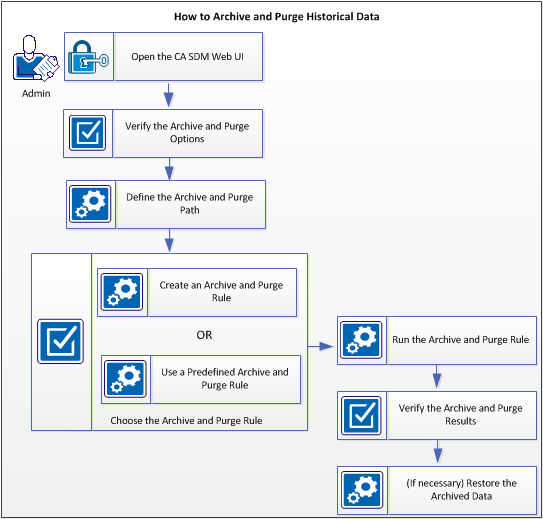
Follow these steps:
Log in to the web UI from the following servers, depending on your CA SDM configuration:
Before you set up the archive and purge rule, verify the archive and purge options that you may require to install or uninstall, depending on your organization needs. For example, the default_schedule option specifies the default schedule (workshift entry) used by the archive and purge rules. If the option value is set to an invalid workshift entry name or empty string, the rule does not execute the rule with the schedule value. The option value field sets the NX_DEFAULT_SCHEDULE variable, which is located in the NX.env file.
Select Options Manager, Archive and Purge on the Administration tab. Install or uninstall the option that you require.
You can define the location where you want to store the archived data. This path can be the root directory of a remote server or a UNC path. Depending on your CA SDM configuration, the following servers must run on Windows to access the UNC path:
Follow these steps:
The Repositories page opens.
The repository details page opens.
Specifies the archive and purge action to be taken on the contents of the repository. Following values are the valid:
None: No archive and purge process is performed.
Archive and Purge: The historic records are written to the file specified in the archive field and purged from the database.
Purge Only: The historic records are purged from the database, but are not written to the archive file.
Specifies the directory path or the UNC path to which files in the repository are moved during the archive process.
Specifies the credentials to access the UNC path. Click UNC Credentials to open the Credentials Search page.
The Credentials Search page opens.
The archive and purge path is defined.
You create the UNC credentials to allow users to access shared resources from the CA SDM servers using UNC path.
Important! The UNC component does not work when the CA SDM server is in the domain and the shared location is in the WORKGROUP. It also does not work when the administrator password for the CA SDM server and the shared location are different.
Follow these steps:
The Credentials List page opens.
The Create New Credentials page opens.
Specifies the unique identifier to identify the credentials during a search easily.
Specifies the username to access the UNC path. The user can be a local or domain Windows user having access to the Service Desk server.
Specifies the password to access the UNC path.
Specifies if the UNC credentials are active or inactive. The inactive credentials cannot be used.
The UNC credentials are created.
You are required to select the appropriate archive and purge rule. Consider the following possibilities:
Before you can perform an archive or purge, you create a rule. The rule defines what you want to archive and when.
Example: You create an archive and purge rule to remove deleted forums from the database.
Follow these steps:
The Archive and Purge Rule List page opens.
The Create New Archive and Purge Rule page opens.
The new rule is displayed on the Archive and Purge Rule List page.
Example: You create an optional configuration rule inside the arcpur_cfg.xml and itil_arcpur_cfg.xml files to archive and purge the KPI_Ticket_Data node.
Follow these steps:
The following is a sample main_object definition for the ticket object, cr:
<!-- KPI Ticket Data -->
<main_obj>
<name>KPI Ticket Data</name>
<internal_name>KPI Ticket Data</internal_name>
<factory>ktd</factory>
<default_query>obj_name='cr'</default_query>
<date_field>end_time</date_field>
<ref_by value="obj_id">cr.id</ref_by>
</main_obj>
Note: The configuration rule can only select records for cr. The ref_by tag can match the value of obj_id in KPI Ticket Data to the value of id in cr. If a match is found, it means that a KPI Ticket Data record is referenced by a cr record, so the KPI Ticket Data record is not archived and purged.
These configuration rules become selectable configuration object names in the Archive and Purge Rule Detail form.
Archive and Purge Rule Fields
You can use the following fields to define or edit rule definitions.
Specifies a unique identifier for the rule.
Indicates whether this rule is active. The inactive rule runs only once, even if it is scheduled for a recurrent process.
Specifies a workshift during which the rule should be in effect.
Specifies how often this rule will run.
Specifies the name of the file where you want to store the historic records. Enter the file name that you have mentioned while defining the archive and purge path. For more information, see the Define the Archive and Purge Path topic.
Specifies one of the following types of operation that the rule must execute:
Archives the historic records to a file and purges the archived records from the database.
Purges historic records from the database, but they are not written to the archive file.
Writes historic records to the archive file without purging them from the database. Use this option to test a newly created or edited archive and purge rule.
Specifies the name of the database object this rule can archive and purge. The Object Name field is automatically populated according to your selection in the Config. Object Name field.
Specifies the number of days a record is inactive to be eligible for the archive and purge from the database.
Archives and purges specific inactive records among the existing inactive records. Use this field when you want to create different rules for archiving and purging the subsets of expired records for the same object. Use the same syntax as you use for stored queries.
The following query archives and purges only assigned inactive request records with a priority of 1:
priority = 1 AND (assignee IS NOT NULL OR group IS NOT NULL) and active = 0
The following query format archives and purges records based on time-span:
close_date < EndAtTime(\'LAST_YEAR\')
You can use the predefined rules in CA SDM to archive and purge historical data. These predefined rules are set to Inactive, by default. Set it active to use the rule.
Example: Use the predefined rule to archive and purge the KPI data.
Follow these steps:
Important! Ensure that you select the Active option from the Status field.
The predefined rule is ready for use.
You check the results of the archive and purge rule that you have scheduled. Do one or both of the following actions:
You can view the history for each archive and purge rule. For example, view the objects that are purged by a rule.
Follow these steps:
The Archive and Purge History List page opens.
Note: To display the Additional Search Arguments field, click the spigot icon. This field is intended only for expert users who understand SQL and Majic and can use it to specify search arguments that are not available in the standard search filter fields. To specify an additional search argument, enter a SQL WHERE clause in this field.
The list of matching rules are displayed.
The Archive and Purge Rule Detail page opens.
You can check the arcpur.log file from the $NX_ROOT/log/ directory to find the errors that have occurred while executing the scheduled archive and purge rule.
Note: The size limitation for arcpur.log files is defined in $NX_ROOT/NX.env as
# The size limit for the Archive and Purge log file and data file.
@NX_ARCPUR_FILESIZE=2000000000
Archive and purge creates arcpur.log.0, arcpur.log.1 though arcpur.log.9 after reaching the file limit for each log files.
You can restore the archived data when you need them in the database again.
Follow these steps:
pdm_load -a -f 2004611T1726_Call_Request.dat
|
Copyright © 2013 CA.
All rights reserved.
|
|