

|
|
|
As part of customizing your implementation, you can customize the look-and-feel of the login page to reinforce branding or other messaging. The same login page applies to all users, regardless of business unit that they are logging in to. Before you edit the logon.css file, verify that you meet the prerequisites for editing CSS files.
Follow these steps:
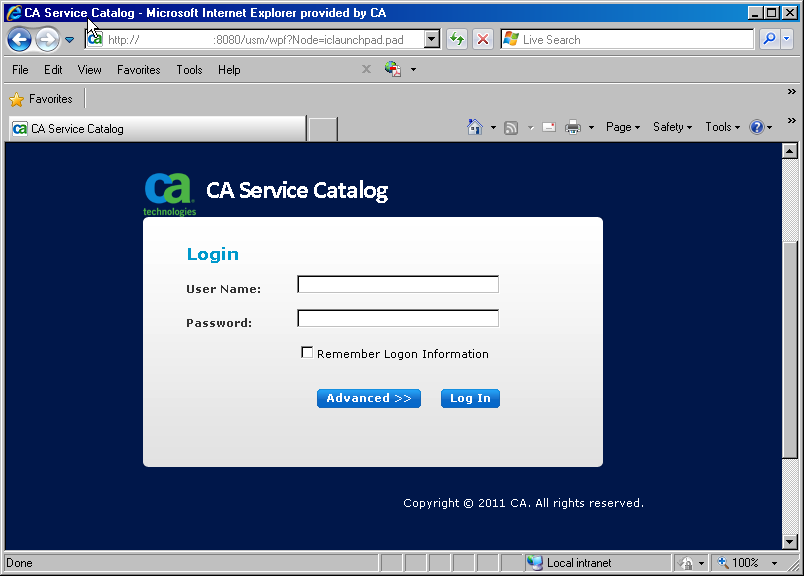
For example, for the predefined CA _Technologies_r7 theme, before you make any customizations, the login page appears similar to the following:
Important! As a best practice, always back up CSS files and other configuration files before editing them.
For example, to configure the look-and-feel of the product name, find the following line:
.loginproductname {
  text-align: left;
  font-family: CAlibri, Verdana, Arial, Helvetica, sans-serif;
  color: #ffffff;
...
For example, for the previous step, to change the color of the product name from the current color to blue, update the lines as follows:
.loginproductname {
  text-align: left;
  font-family: CAlibri, Verdana, Arial, Helvetica, sans-serif;
  color: blue;
...
For example, to configure the background color of the login page, find the following lines:
.login_page {
  background-color: #00174A;
  text-align: center;
...
For example, consider the previous step. To change the background color of the login page to yellow and align the affected text to the right, update the lines as follows:
.login_page {
  background-color: yellow;
  text-align: right;
...
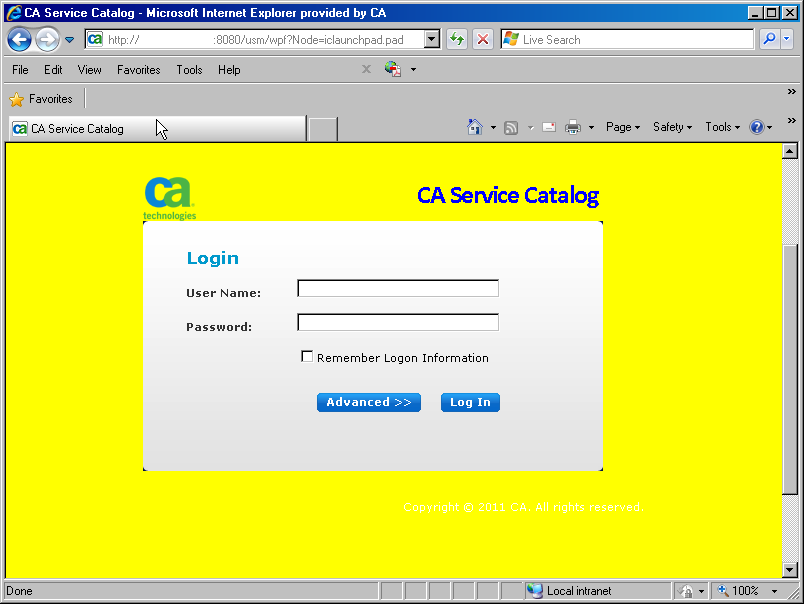
For example, the following page reflects the customizations made in the previous steps. The product name is blue. The background color is yellow. The affected text is aligned on the right.
You have customized the login page.
| Copyright © 2011 CA. All rights reserved. | Tell Technical Publications how we can improve this information |