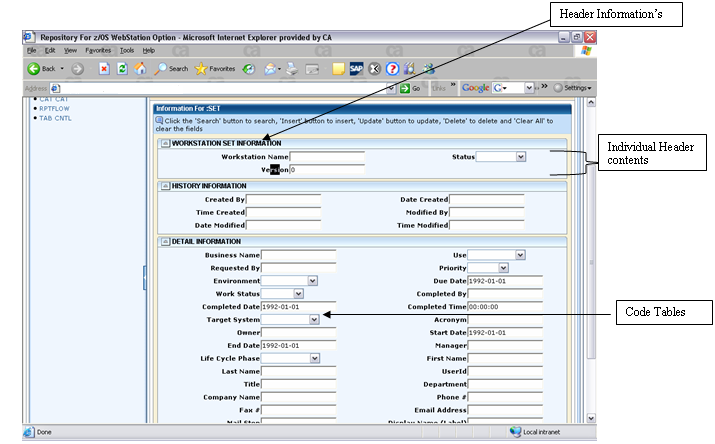
 The following section describes how you can generate the information pertaining to the following specific information:
You can see a list of repository dialogs (or metadata models) when you click the Repository tab available on the home page. The dialog appears in a tabular form displaying a list of objects. You can perform data modification task for repository objects. However, you need to have the necessary rights on repository dialog to be able to perform the data modification tasks; as right to log on to the application server and right to update repository dialogs are different.
To view repository object types and object attributes
A list of object types associated with the selected dialog appears in a tabular form.
The object attributes are displayed on the Repository Objects page. the page also allows you to perform the following tasks on repository objects :
Important! You can perform data modification tasks for repository objects ONLY when you have the following rights on repository dialog:
While working with repository objects, you are also interacting with the underlying repository tables; and these tables enforce some pre-conditions that should be satisfied. The CA Repository for Webstation Option allows you to view the repository object entities, attributes and make any required changes to the exiting objects.
This section explains the mechanism to generate following sample illustration: The following section describes how you can generate the information pertaining to the following specific information:
The repository dialog types display requires the following pre-conditions:
Example:
SELECT DISTINCT D.DIALOG, D.DESCRIPTION FROM RZOZ722.DBX_PRIV_USER U, RZOZ722.DBX_DIALOG_PRIV DP, RZOZ722.DBX_DIALOG D WHERE U.TSO_LOGON = UPPER ('DADMO01') AND DP.PRIV_NAME = U.PRIV_NAME AND DP.DIALOG = D.DIALOG
The query retrieves all the dialog names present in the DBX_DIALOG table and checks the privileges from DBX_DIALOG_PRIV and DBX_PRIV_USER for the specific user DADMO01.
SELECT DISTINCT X.ENT_NAME, X.ENT_TYPE, CASE WHEN X.TYPE2 = 'SET' THEN X.TYPE2 ELSE X.TYPE1 END AS TYPE FROM TABLE( SELECT DISTINCT Z.ENT_NAME, Z.ENT_TYPE, Z.TYPE1, Y.TYPE2 FROM TABLE( SELECT DISTINCT E.ENT_NAME, E.ENT_TYPE, CASE WHEN E.ASSOCIATION = 'Y' THEN 'ASSOCIATION' WHEN E.ASSOCIATION = 'N' AND E.SOURCE_ENT_TYPE <> 0 AND E.TARGET_ENT_TYPE <> 0 THEN 'RELATIONSHIP' ELSE 'ENTITY' END AS TYPE1 FROM RZOZ722.DBX_DIALOG D, RZOZ722.DBX_ENT_TYPE_DESC E WHERE D.ENT_TYPE = E.ENT_TYPE AND D.DIALOG = 'SHOPCNTL' ) AS Z LEFT OUTER JOIN TABLE(SELECT DISTINCT E.ENT_NAME, E.ENT_TYPE, 'SET' AS TYPE2 FROM RZOZ722.DBX_DIALOG D, RZOZ722.DBX_ENT_TYPE_DESC E, RZOZ722.DBX_SET_TYPE S WHERE D.ENT_TYPE = E.ENT_TYPE AND E.ENT_TYPE = S.SET_ENT_TYPE AND D.DIALOG ='SHOPCNTL') AS Y ON Z.ENT_TYPE = Y.ENT_TYPE) AS X
The pre-condition to fetch the header information is as follows:
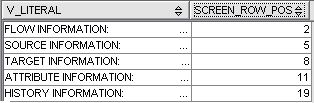
The following query returns the Header names to be displayed along with the screen row positions.
Select v_literal, screen_row_pos from RZOZ722.DBX_SCREEN_LIT where col = 2 and hilite = 'Y' and map_id IN (Select map_id from RZOZ722.dbx_dialog where dialog = 'SHOPCNTL' and ent_type = 25136) order by screen_row_pos
The result will be used to generate the UI screen of display page and XSD.
The following illustration displays the result set:
This section describes the queries along with the result set that are used to generate the XSD schema for a repository objects.
SELECT DISTINCT M.CODE_TABLE_NAME, M.COLUMN_NAME, M.ATTR_CODE, M.OFFSET, M.BYTE_LENGTH, M.STORAGE_TYPE, M.SOURCE_TARGET, M.REQUIRED,
M.MODIFIABLE, COALESCE (S.SCREEN_ROW_POS, 999) AS SCREEN_ROW_POS, COALESCE (S.COL, 999) AS COL, COALESCE (S.HILITE,' ') AS HILITE,
COALESCE (S.DEFAULT_VALUE,' ') AS DEFAULT_VALUE, COALESCE (S.GUI_LITERAL,' ') AS GUI_LITERAL FROM RZOZ722.DBX_IO_MAP_ATTR M
LEFT OUTER JOIN RZOZ722.DBX_SCREEN_ATTR S ON M.MAP_ID = S.MAP_ID AND M.COLUMN_NAME = S.COLUMN_NAME AND
M.SOURCE_TARGET = S.SOURCE_TARGET WHERE M.MAP_ID IN (Select map_id from RZOZ722.dbx_dialog where dialog = 'SHOPCNTL' and ent_type = 25136)
AND M.ATTR_CODE <> 'X' ORDER BY M.SOURCE_TARGET, SCREEN_ROW_POS, COL, M.OFFSET
The result of the query appears as follows:
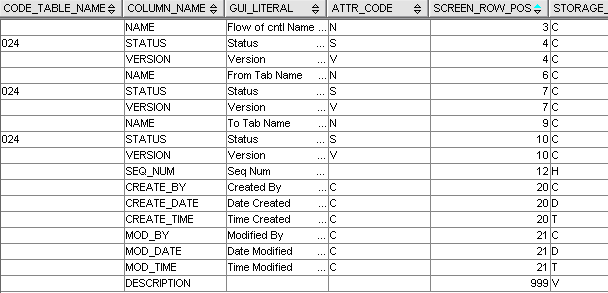
All the rows in result set appearing in the, whose screen row position comes between the two consecutive screen row positions of first result set, will come under one heading. The above illustration displays only up to nine columns because of space restrictions.
The complete list of columns displayed are as follows:
The column Screen Row Position in this result set will be used with the result set of fetching header contents to generate the display page and XSD.
We execute one more query for X attributes, these are the attributes for which there is a '999' entry in screen row position of second resultset; also we can find the value of Attr_code column as 'X' by executing the following query:
SELECT * FROM RZOZ722.DBX_IO_MAP_ATTR WHERE ATTR_CODE='X'AND MAP_ID=25136
Here, we can see clearly that 'Description' contains '999' entry under screen row position column, so we need to execute one more query:
Select ma2.column_name, min (s.screen_row_pos) from RZOZ722.dbx_IO_MAP_ATTR ma1, RZOZ722.dbx_IO_map_attr ma2,
RZOZ722.dbx_screen_attr s where ma1.map_id IN (Select map_id from RZOZ722.dbx_dialog where dialog = 'SHOPCNTL' and ent_type = 25136)
and ma2.map_id IN (Select map_id from RZOZ722.dbx_dialog where dialog = 'SHOPCNTL' and ent_type = 25136)
and s.map_id IN (Select map_id from RZOZ722.dbx_dialog where dialog = 'SHOPCNTL' and ent_type = 25136)
and ma1.map_id = ma2.map_id and ma1.map_id = s.map_id and ma2.map_id = s.map_id and ma1.offset between ma2.offset
and ma2.offset + ma2.byte_length and ma1.column_name = s.column_name and ma1.attr_code = 'X'
and ma2.attr_code <> 'X' group by ma2.column_name, ma2.offset
The result returned by executing above query is as follows:
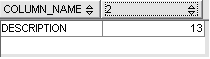
You can find the entries for a particular heading by considering the following points:
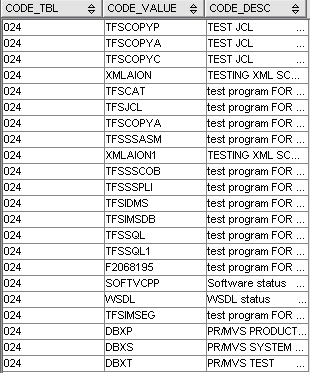
The values fetched from the code table is displayed as drop-down list.
For example, in the Individual Header result set, all the rows, which have some non-null value under column code table, should be displayed in drop down lists with values fetched from their code tables.
The query to fetch the enumerations is:
Select v.code_tbl, CASE WHEN t.code_table_type = 'CHAR1' then code_1 WHEN t.code_table_type = 'CHAR10' then code_10
WHEN t.code_table_type = 'CHAR5' then code_5
WHEN t.code_table_type = 'INTEGER' and t.code_range_flag = 'N' then char (CODE_NUM)
ELSE ' ' END as code_value , v.code_desc
from RZOZ722.dbx_code_variance v, RZOZ722.dbx_code_tbl t where
v.code_tbl = '024' and t.code_tbl = '024' and v.code_tbl = t.code_tbl;
The result returned by executing above query is as follows:
| Copyright © 2009 CA. All rights reserved. | Email CA about this topic |