

Install the Domain Orchestrator › Post-Installation Tasks for the Domain Orchestrator › Make the Bookshelf Available on Orchestrators without Internet Access
Make the Bookshelf Available on Orchestrators without Internet Access
Users who browse to Orchestrators with Internet access can open CA Process Automation Bookshelf of documentation from the Book Shelf link in CA Process Automation. This link accesses the CA Process Automation Release 4.2 Bookshelf posted on CA Technologies Customer Support (in the language set in User Settings).
Users who browse to Orchestrators that have no Internet access need your help to make the CA Process Automation bookshelf available to them. Activate the Book Shelf link by downloading the bookshelf and moving it to a location that will pick up the local server copy.
Follow these steps:
- Browse to CA Process Automation and log in as a default administrator.
- From the Help drop-down list, click Book Shelf. Determine whether the bookshelf can be opened from CA Technologies Customer Support.
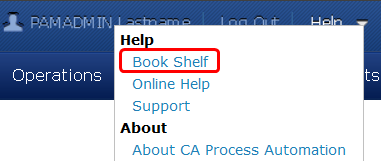
- If the bookshelf does not open because Internet access is not provided in the environment where Orchestrators are installed, then perform the following steps.
- For each language version that CA Process Automation users require, download the bookshelf.zip for that language.
- Log on to a computer with Internet access.
- Browse to https://support.ca.com
- Select Product Documentation from the Get Support tab.
- Enter CA Process Automation in the Select a Bookshelf field to get to the relevant part of the drop-down list.
- Select a required language.
- CA Process Automation 04.2.00 -Brazilian Portuguese
- CA Process Automation 04.2.00 -French
- CA Process Automation 04.2.00 -German
- CA Process Automation 04.2.00 -Italian
- CA Process Automation 04.2.00 -Japanese
- CA Process Automation 04.2.00 -Spanish
- CA Process Automation 04.2.00 -Turkish
- CA Process Automation 04.2.00 -US English
- Click Go.
The selected bookshelf opens.
- Click the Download this Bookshelf link. (This link appears above the Release Information section.)
- Save the selected bookshelf to your local drive.
- Repeat this step, if needed.
- On each standalone Orchestrator and on each node of each clustered Orchestrator, do the following:
- Navigate to the following location:
install_dir/server/c2o/.c2orepository
- Create a folder, bookshelf. That is:
install_dir/server/c2o/.c2orepository/bookshelf
- Create a language-specific folder xx_XX for each language required by your users. Following is the list of supported languages:
- de_DE (German)
- en_US (English)
- es_ES (Spanish)
- fr_FR (French)
- it_IT (Italian)
- ja_JP (Japanese)
- pt_BR (Portuguese)
- tr_TR (Turkish)
- zh_CN (Chinese)
For example, the following example directory is for the English translation:
install_dir/server/c2o/.c2orepository/bookshelf/en_US
- Extract the contents of each bookshelf.zip you downloaded to the associated xx_XX language-specific folder.
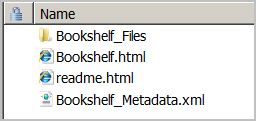
For example, extract contents for CA Process Automation 04.2.00-ENU.zip to the following directory:
install_dir/server/c2o/.c2orepository/bookshelf/en_US
- Open CA Process Automation. For example, open CA Process Automation from the Start menu.
- From the Help drop-down list, click Book Shelf and verify that the bookshelf opens in the default language.
- If your downloaded the bookshelf.zip in multiple languages, change the language and repeat the previous step to verify that the bookshelf opens in each required language.
To change the language in CA Process Automation, click the User ID link (top, right), which opens User Settings. Set the Language setting.
Copyright © 2014 CA.
All rights reserved.
|
|