

Library Browser › Working with Objects and Folders › Edit an Object › Define the Run Duration for a Process
Define the Run Duration for a Process
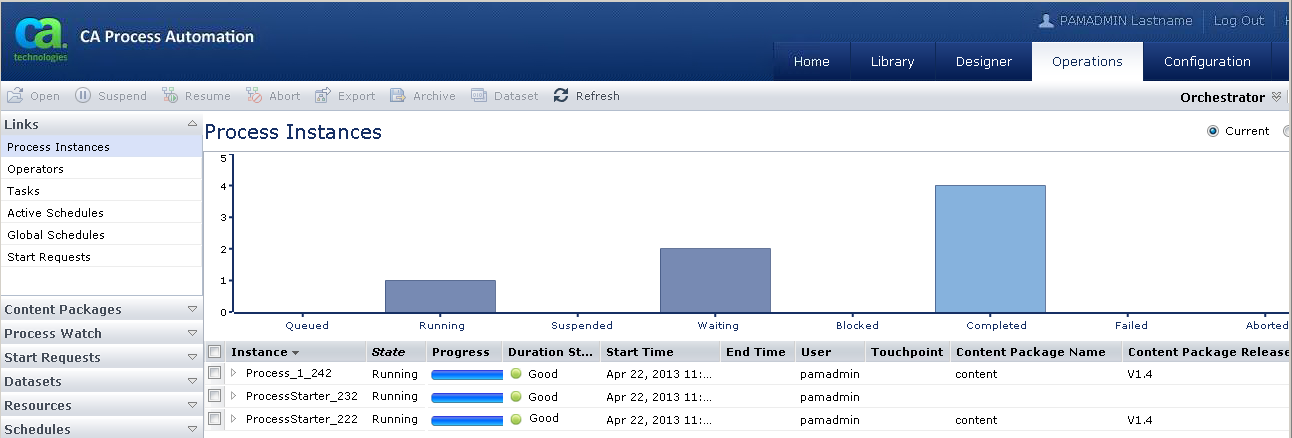
You can define the expected run duration for a process. If the process run time exceeds the defined duration, the Operations tab displays a red (warning) indicator.
Follow these steps:
- Click the Library tab.
- Select a folder and then select a process object for which to define the run duration.
Note: If the appropriate process object does not exist, create it. For more information about creating a process, see Designing Processes.
- Right-click the process object and then select Properties.
- On the Properties pane, click the Duration tab.
Note: See the tooltips or the User Interface Reference for field descriptions and examples.
- Select the Enabled check box.
The product enables the Duration tab fields.
- Set the expected process duration.
- Set how long before the process run exceeds the expected duration that the product warns the user.
- Click Save.
The Duration Status displays one of the following status indicators for the associated runtime process instance:
- Red: The process run has exceeded the expected duration.
- Yellow: The process is running but is nearing end of the expected duration.
- Green: The process ran during the expected duration. The status is green while a process is completed and while a process is running and not in yellow or red status.
- No indicator: The process has no expected duration set.
Copyright © 2014 CA.
All rights reserved.
|
|