

Install the Domain Orchestrator › Prerequisites to Installing the Domain Orchestrator › CA EEM Prerequisites › User Authentication and Authorization in FIPS Mode
User Authentication and Authorization in FIPS Mode
CA EEM can be configured to use FIPS mode. This is an option. When CA EEM is configured to use FIPS, CA Process Automation must be configured to use FIPS. This is achieved by selecting the Use FIPS-Compliant Certificate check box during installation of the Domain Orchestrator.
Whether FIPS mode is set to on or off, the data transferred between CA EEM and CA Process Automation is encrypted. The difference is in the algorithms used for encryption.
When users log in, CA Process Automation transfers the user name and password to CA EEM. CA EEM returns authentication data and authorization data to CA Process Automation.
- When FIPS mode is on:
- Transferred data is encrypted with the SHA1 algorithm supported by FIPS.
- A PAM.cer certificate is used.
- When FIPS mode is off:
- Transferred data is encrypted with the MD5 algorithm.
- A PAM.p12 certificate is used.
Define the CA EEM Configuration Type for Storing Global Users
If you are completing CA EEM prerequisites for the initial installation of CA Process Automation, consider the following:
- Part of CA EEM configuration is selecting whether to store user credentials internally or reference user credentials from an external directory or from SiteMinder.
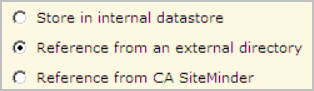
- If you are using an existing CA EEM that supports applications other than CA Process Automation, this option and the configuration type is already defined. All applications use the same configuration type. Configuration types vary by release.
- The CA EEM Release 8.4 "Reference from an external directory" option includes the configuration type Microsoft Active Directory
- The CA EEM Release 12.5 "Reference from an external directory" option includes its own set of configuration types, including multiple AD domains and an AD forest.
- If you are using a new CA EEM instance, consider using this procedure:
- Install CA EEM and start CA EEM.
- Install CA Process Automation. During installation, register with CA EEM which creates the CA Process Automation application in CA EEM, and skip the test for connectivity to CA EEM.
- Log into CA EEM with the EiamAdmin user credentials and the CA Process Automation application name.
- Define the user store, and if you select Reference from an external directory, define the details.
For more information about configuring Global Users from a referenced user store in CA EEM, see the CA EEM documentation. See also the following examples:
- While in CA EEM, configure CA Process Automation users. See "Assign an Application Group to a Global User" in the Content Administrator Guide.
- Optionally, configure CA EEM to permit referenced users to log in with their email names.
Copyright © 2014 CA.
All rights reserved.
|
|