Previous Topic: ca_pam_convertXMLToJSObject(xmlString, elementTagName)Next Topic: Initialize Form Variables


Create a Simple Form with Basic Functions

In this example, you are developing a form for a company that operates in three primary regions (California, Pennsylvania, and North Carolina). In each state, the company has a primary and secondary office location that the name of the city identifies. The stakeholders responsible for implementing company policy want the form to meet the following business requirements:

Example: A Basic Form

Follow these steps:

  1. Click the Library tab.
  2. Create an Interaction Request Form object or locate an existing one to use for this sample procedure.
  3. Double-click the form object.

    The Interaction Request Form dialog, or Forms Designer, appears.

  4. If the form object is not already checked out, click Check Out.
  5. In the Form Elements pane, expand the following entries:
    1. Form Elements
    2. Your form (for example, Interaction_Request_Form_4)
    3. Page Layout
    4. Page
  6. Click Page.
  7. Click Rename in the toolbar
  8. Enter the name Location: and click OK.
  9. Drag a Select field from the Form pane to the Location page.
  10. Repeat Step 9.

    Two Select fields appear under your Location page layout.

  11. Complete the following actions in the Form pane:
    1. Drag three Select Options to the first Select field.
    2. Drag six Select Options to the second Select field.
  12. Click each of the following form elements and then click Rename to rename each object as indicated:
    1. Rename the first Select field to State.
      • Rename the first option to CA.
      • Rename the second option to PA.
      • Rename the third option to NC.
    2. Rename the second Select field to City.
      • Rename the first option to Anaheim.
      • Rename the second option to Los Angeles.
      • Rename the third option to Pittsburgh.
      • Rename the fourth option to Philadelphia.
      • Rename the fifth option to Charlotte.
      • Rename the sixth option to Raleigh.
  13. Click each of the following form elements and make the following property settings in the Properties (Name and Value) pane.
    1. For State:
      • Set Name to State.
      • Set the onChange event value to ca_fd.js.selectRegion().
      • Set the value of the CA option to California.
      • Set the value of the PA option to Pennsylvania.
      • Set the value of the NC option to North Carolina.
    2. For City:
      • Set Name to City.
      • Set the value property for each city option to the city name. For example, set Anaheim to Anaheim, Los Angeles to Los Angeles, and so on.
  14. In the Form Elements pane, click the name of your form and then click Script in the toolbar.

    The Script dialog opens.

  15. Copy and paste the following code in the Script editor:
    {
     selectRegion: function() 
      {
    	var selectedState = ca_pam_getSelectedOptionValues('Form.State')[0];
     
    	if(selectedState == 'North Carolina') 
    	 {
    	  ca_pam_selectOption('Form.City', 'Raleigh', 'Raleigh', true);
    	 }
    	else if(selectedState == 'California')
    	 {
    	  ca_pam_selectOption('Form.City', 'Anaheim', 'Anaheim', true);
    	 }
    	else if(selectedState == 'Pennsylvania')
    	 {
    	  ca_pam_selectOption('Form.City', 'Philadelphia', 'Philadelphia', true);
    	 }
    	else
    	 {
    	  ca_pam_selectOption('Form.City', 'Pittsburgh', 'Pittsburgh', true);
    	 }
      }
    }
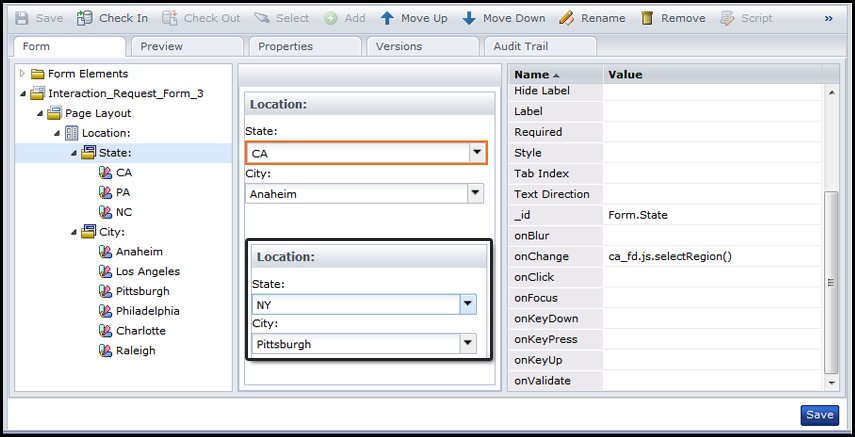
    
  16. Click Save. The Script dialog closes.
  17. Click Save in the Forms Designer.
  18. Click the Preview tab.
  19. Confirm that your results are similar to the sample results and values in the following illustration and table:

State:

Default City:

CA

Anaheim

PA

Philadelphia

NC

Raleigh

Any other state. For example, NY.

Pittsburgh