When you open a form from the Library Browser, the Form Designer opens. The Form Designer features a standard toolbar and series of tabs. Use the Form tab to design a form and use the Preview tab to review its appearance.
|
Item: |
Description: |
|---|---|
|
|
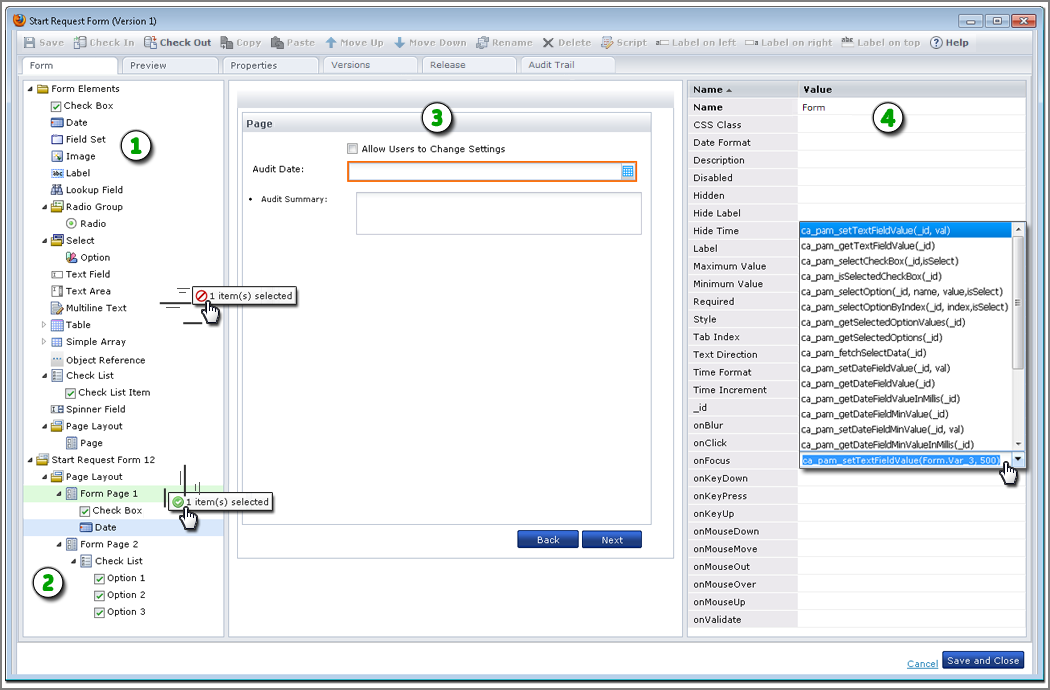
Form Elements: The top of this pane displays all the available types of controls. |
|
|
Form Structure: The bottom of this pane shows the structure of your form. Drag and drop form elements to the pages of your form from here. |
|
|
Form Pages: The layout for the pages of your form appears here. Click a control to edit its properties. For forms with multiple pages, click Back and Next to view other pages. Users can also click Next and Back to view the form pages. Drag and drop form elements to the page to design the forms. Note: The area that is available to drop a page onto another page is very small. We recommend dragging the page element to the bordering area in between the form elements and the form itself:
|
|
|
Property Pane: Use this pane to view or edit the variables in the form elements. For example, set the Required property to true, change the Label that identifies a field, or specify a function for an event. The illustration shows the following arguments used in the onFocus event to set the value of a text field named Form.Var_3 to 500: ca_pam_setTextFieldValue(Form.Var_3, 500) |
|
Copyright © 2014 CA.
All rights reserved.
|
|