

The Process Designer provides an integrated development environment where you can drag and drop operators and links to design processes. The Process Designer also provides property and dataset configuration, testing, and debugging capabilities.
Use the Process Designer to:
Add an operator by dragging it from the Operators palette to the design layout. You can also directly view and configure the properties or dataset values for an operator or process.
The process designer layout includes the following process elements:
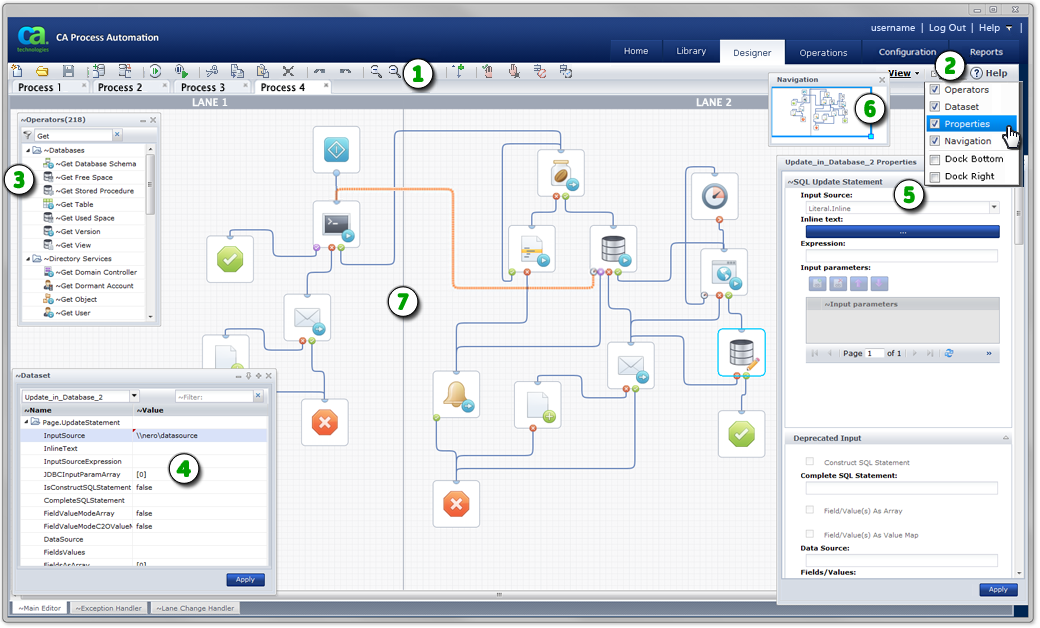
The following graphic depicts the Process Designer.
|
Item: |
Description: |
|---|---|
|
|
Designer Toolbar and Process Tabs: When you open a process from the Library Browser, the Designer tab appears. Each open process appears in its own tab. Use the toolbar buttons to check out, edit, zoom in or out, save, test, and check in the selected process object. You can copy and paste operators from one process tab to another. The toolbar also features icons for creating a process or opening an existing process (screen images may vary). |
|
|
View Menu: Use the View settings at top right to show or hide the Operators, Dataset, Properties, and Navigation palettes. You can also dock the properties and datasets palettes to the right or bottom. Click Tear Off to open the current page in its own window in your browser to maximize your view. |
|
|
Operators Palette: Drag and drop operators from this palette to your process layout. You can also enter search criteria (for example, "Get") to filter out nonmatching operators. |
|
|
Dataset Palette: Use this palette to view, edit, and add variables in process or operator datasets. |
|
|
Properties Palette: Use this palette and its additional buttons and windows to manage the properties of the currently selected operator. |
|
|
Navigation Palette: Use this palette to navigate to specific regions inside large processes with multiple lanes. As a convenience, you can pan in any direction within this palette instead of scrolling the main designer layout up or down. |
|
|
Process Designer: The actual process design appears in this work area, canvas, or layout. The Process Designer includes the background grid and one or more lanes. |
|
Copyright © 2013 CA.
All rights reserved.
|
|


