

|
|
|
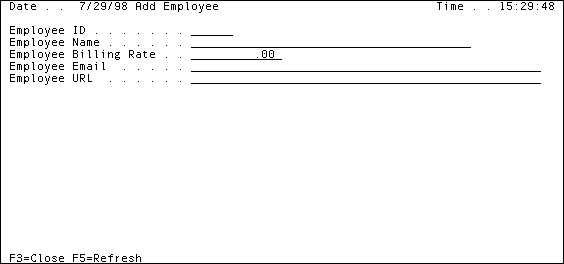
To add employees to the entity:
|
Value |
Enter |
|---|---|
|
Employee ID |
EMP01 |
|
Employee Name |
Randy Johal |
|
Employee Billing Rate |
$45.00 |
|
Employee Email |
rjohal@anonycorp.com |
|
Employee URL |
http://www.anonycorp.com/~rjohal |
|
Value |
Enter |
|---|---|
|
Employee ID |
EMP02 |
|
Employee Name |
David Castro |
|
Employee Billing Rate |
$32.00 |
|
Employee Email |
dcastro@anonycorp.com |
|
Employee URL |
http://www.anonycorp.com/~dcastrol |
|
Value |
Enter |
|---|---|
|
Employee ID |
EMP03 |
|
Employee Name |
Martha Kolman |
|
Employee Billing Rate |
$55.00 |
|
Employee Email |
mkolman@anonycorp.com |
|
Employee URL |
http://www.anonycorp.com/~mkolman |
Employee.Physical Table implement SYS No
For more information, see Preserving Data in the chapter "Defining Entities."
| Copyright © 2012 CA. All rights reserved. | Tell Technical Publications how we can improve this information |