Modifying the User Interface › Adding Static Text
Adding Static Text
Later you will add the ability to assign tasks to projects. In preparation for this stage, you next add static text to your panel that tells the end users how to get to the Add Tasks panel.
To add static text:
- In the Panel Palette, right-click Selector text, and choose Create Static from the pop-up menu. The Create Static dialog appears:
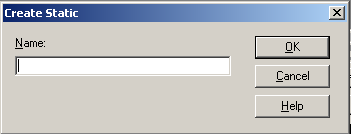
- Enter 5=Work with tasks in the Name field. Then click OK.
- Select the new static item under the Selector text region in the Panel Palette.
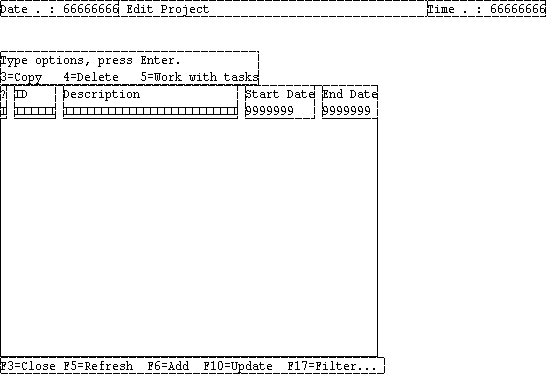
- Notice that, in the Design Window, the selected static text is behind the text at the top of the region. Drag the static text down and to the right so that it is to the right of 4=Delete.
- Your panel should look something like this:
- Close the panel design and save your changes.

