

|
|
|
The Design Window is the Panel Designer’s main window. Using this window, you can create or change a window and see how your changes affect the panel’s appearance. You can select, move, and resize fields and other user interface elements using this window. When you make visual changes to the panel and its elements using other windows, the changes appear here.
A panel’s elements are grouped into regions. A region is the equivalent of a DDS format.
The following graphic shows the panel’s main region you use to add and edit projects.
Panel Palette
The Panel Palette shows all the elements of the panel, such as fields, labels, and buttons, which are grouped under folders ( ) and regions (
 ). Feel free to expand the folders and regions to see what they contain. Most of the visible elements are contained in regions. Notice that you can see the five regions of the Panel Palette:
When a region is expanded, as the Grid region is in the following example, you can see the elements contained in that region. In the case of the Grid region, this includes the Grid Selector, Project ID, Project Description, Project Start Date, and Project End Date fields.
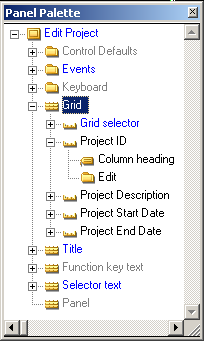
When represented on panels, fields contain more than one part, including at least one label and a control. Notice on the preceding graphic that the Project ID field shows both a column heading and an Edit control. The label indicates whether it is a Left Label, a Column Heading, or a Right Label. The type of label indicates if it appears to the left or right of the field (left/right label), or as a column heading. The control is the part that end users interact with. The settings for the control indicate how it appears.
| Copyright © 2012 CA. All rights reserved. | Tell Technical Publications how we can improve this information |