

|
|
|
The fields you just defined represent character and date data types. These represent different kinds of fields. The identifier and description fields will hold text, and the start and end dates will hold dates. Currently, your model only indicates that these fields exist, and that they belong to the Project entity, but they have no information as to the type of data they store.
In the next step, you further define Project’s fields using inheritance. Inheritance is the mechanism that enables an object to adopt the properties of another more general object. For more information on this concept, see Inheritance in the chapter, "Introduction."
By inheriting from class library fields, you enable your application to:
To define the properties of Project’s fields:
Note: The cursor changes to a closed parcel icon  when you are dragging an object from the Object Browser. It changes to an open parcel icon
  when it is over an editor, or any area that can accept the object.

You just created the triple Project ID is a OBASE/Code. Click the Refresh button on the Object Browser. Notice that the Project ID field has a plus icon to the left, indicating that it now has scoped objects.
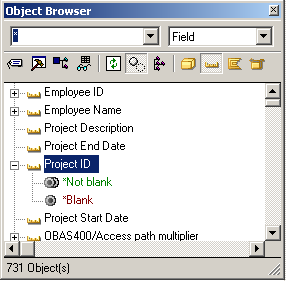
When you drag one or more objects to the body of the Model Editor, the display changes to show you the triples that define those objects.

When you drag the Project ID field to the Model Editor, it focuses on this field, showing the triple Project ID is a OBASE/Code. This triple still does not tell you much.

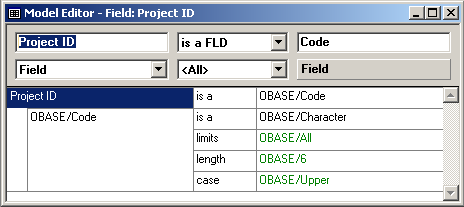
Now, you can see that Project ID has inherited a data type of character and a length of six through the inheritance triple OBASE/Code is a OBASE/Character.
Note: In Step 4, you dragged the library object OBASE/Code from the Object Browser to the Model Editor to enter it in the target object field. You can actually type the value into the target object field (without the library name) to accomplish the same thing.
Important! If you mistype the object name, you are likely to create a new object with the mistyped name.

Notice that the Model Editor displays the triple as:
Project Description is a OBASE/Narrative
This indicates that you correctly spelled the class library field, as the Model Editor replaced your entry with the library object by the same name.
Note: If you create a new object for a model, and it happens to share the name of a library object, you must rename your object or delete it (if you did not intend to create it).
Project Description length 30
Project Start Date is a OBASE/ISO Date
Project End Date is a OBASE/ISO Date
This inheritance gives the fields an ISO date format and includes built-in functionality to ensure that the date values end users enter are valid dates.
Use the process described in Steps 7 and 8 to look at the characteristics these fields inherited from the class library fields.
| Copyright © 2012 CA. All rights reserved. | Tell Technical Publications how we can improve this information |