

|
|
|
Now that you have created the function, you need to add a bit of code so that the project parts can interact with the task parts. You will be adding code to:
To modify Project.Maintain Projects:
The patterns in UIBASIC are more primitive than the patterns in FOUNDATION. They do not make any assumptions about how you want to use them. The patterns in FOUNDATION are intended to be ready to use with just a generate and build. So, when you use patterns from the UIBASIC Pattern Library, you have to add some initialization and setup code to the part of the function that inherits from Grid2. If you do not do this, projects will not appear on the list until you click the Refresh button.
The following processing is added in the End Initialize Post Point because the grid should be loaded after the rest of the panel is initialized, but before it is displayed.
This is the first Post Point that already has content:
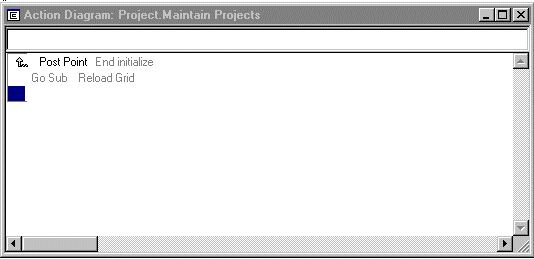
You can only add code at the end of a Pre or Post Point, below any statements that are already there.
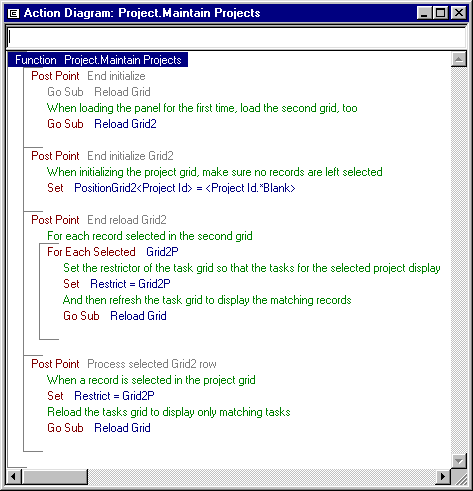
Go Sub Reload Grid2
This statement loads the project grid when the panel is initialized.
Set PositionGrid2<Project ID> = <Project ID.*Blank>
Note: You can find the PositionGrid2 variable in the Local variable group.
This statement tells the function to read the database starting with the first project. If you did not add this statement, the function that reloads the grid would start wherever it stopped the last time it read projects.
Set Restrict = Grid2P
Go Sub Reload Grid
This sets the values of the fields in Restrict variable equal to the corresponding fields in the currently selected row in the project grid. This means that you only get a list of the tasks for that project from the database, and then it reloads the project grid. Remember, when the function loads the task grid, it uses the BlockFetchSet function, which checks the Restrict variable to determine which tasks to load.
For Each Selected Grid2P
Set Restrict = Grid2P
Go Sub Reload Grid
These statements display the tasks associated with any selected projects in the Grid2P region.
Your action diagram should look like the following example. This example includes extra comments in the code:
| Copyright © 2012 CA. All rights reserved. | Tell Technical Publications how we can improve this information |