

|
|
|
You have added the ability to add, delete, and update employee records from the property sheet. Next, you need a way to maintain projects and tasks. You could make both Task.Edit and Project.Edit FrameChild functions, and then put each on its own tab on the property sheet. But you only want to work with tasks in conjunction with the project they belong to, so it makes more sense to see them both on the same tab.
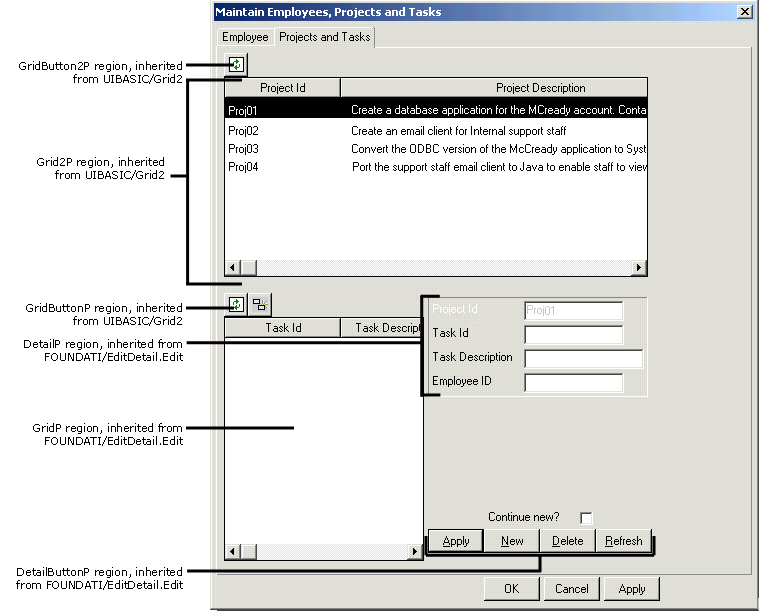
To make this work, you create a new function that shows both project and task data. The panel scoped to the function has a grid on the top that displays projects, and a section at the bottom that displays tasks. When end users select a project at the top, only the tasks that belong to that project are displayed in the bottom.
This function comprises the second tab of the property sheet. When you have added this function to the property sheet, the property sheet looks like this:
To create the function:
Project function FNC Maintain Projects
This defines a new function scoped to the Project entity. You customize this function to work with projects and tasks.
Project.Maintain Projects is a FNC FOUNDATION/EditDetail.Edit
The EditDetail.Edit function is in the Object Browser under the FOUNDATION/EditDetail entity. Inheriting from EditDetail.Edit provides the parts the function needs to work with tasks. The Edit function calls database access functions that are scoped to the Fetch and Update views scoped to EditDetail.
Later, you add replacement triples so that instead of calling the functions and views in the original pattern, your function calls the database access functions and views for your Task entity.
You might wonder why you are not inheriting from Task.Edit instead of inheriting from EditDetail.Edit. You already customized Task.Edit for the wizard, and some of the changes you made will not work quite right for the property sheet. Because your new function works with both projects and tasks together, you define restrictor processing in a slightly different way. Therefore, you inherit directly from the original pattern to define your function.
Project.Maintain Projects is a FNC UIBASIC/Grid2
Project.Maintain Projects is a FNC UISTYLE/FrameChild
You inherit from Grid2 because EditDetail.Edit already has a region called GridP, and you want two grid regions in the new function. You must inherit from Grid2 to get a separate Grid2P region; otherwise, with two functions both having GridP regions, they would become a single one in the new function.
To call the correct database access functions, you need to replace the pattern views that the original function expects with the Fetch and Update views scoped to your Task entity.
Because you are replacing views, use the verb replaces VW in the next step.
Project.Maintain Projects replaces VW FOUNDATION/EditDetail.Fetch
         ...by VW Task.Fetch
Project.Maintain Projects replaces VW FOUNDATION/EditDetail.Update
         ...by VW Task.Update
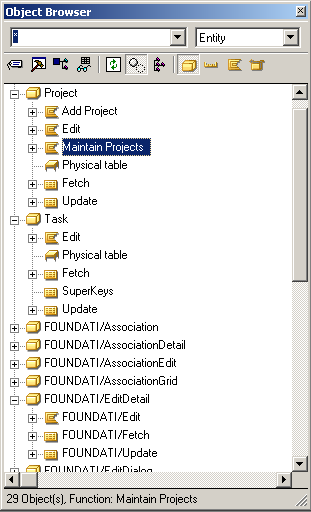
Before you add the replacement triples, Maintain Projects calls the abstract functions scoped to EditDetail.Fetch and EditDetail.Update.
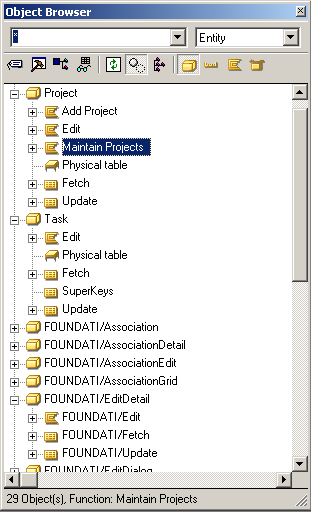
After you add the replacement triples, Maintain Projects calls the functions scoped to Task.Fetch and Task.Update.
Inheriting from Grid2 provides the parts needed to work with projects: a grid to display them on the panel, and calls to template database access functions to read the records to display.
Next, you replace the abstract view Grid2 with the Fetch view from Project, so that the BlockFetch function reads the right records to display on the Project grid.
Note: In the next step, after dragging Project.Maintain Projects to the source object box of the Model Editor, you must change the Object Browser to show entities to find UIBasic.Grid2.
Project.Maintain Projects replaces VW UIBasic.Grid2
          ...by VW Project.Fetch
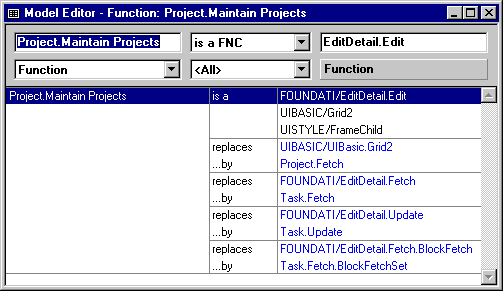
In the chapter "Creating a Wizard", you modified Task.Edit so that it would use BlockFetchSet instead of BlockFetch to retrieve only the tasks for the project you specify. You do that again for Project.Maintain Projects, so that the task grid only loads the records that match the selected project.
Project.Maintain Projects replaces FNC EditDetail.Fetch.BlockFetch
        ...by FNC Task.Fetch.BlockFetchSet
| Copyright © 2012 CA. All rights reserved. | Tell Technical Publications how we can improve this information |