Creating a Wizard › Defining the Wizard › Running the Basic Wizard
Running the Basic Wizard
The series of triples you entered in the previous section provide the basic definition for the wizard. It is not yet complete—there are some user interface refinements and additional processing we need to add. However, it is useful to generate, build and run the wizard now. This lets you see how the basic wizard works and it helps you understand the additional changes you will make in the rest of this chapter.
Since you last built the model, you defined two new functions, Project Wizard and Project.AddUpdate. You also modified the function Task.Edit to inherit from UISTYLE/FrameChild. You have not yet generated and built the Task entity.
To generate and build the Task Entity:
- If you do not have a Generate and Build window open, click the New Gen and Build toolbar button.

- If you do have one open, reload it.

- Select the following objects:
- The Project.Add Project function
- The Project Wizard function
- The Task entity (make sure it is collapsed so that all of its scoped objects are also generated and built)
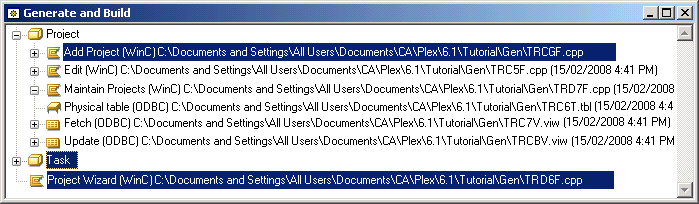
- Generate and build these objects. For more information on generating and building, see Generating and Building in the chapter “Your First CA Plex Application in 20 Minutes.”

To test the wizard:
- In the Generate and Build window, select Project Wizard.
- Click the Run toolbar button.

- When prompted for a data source, select Plex r7.0 Tutorial.dsn and click OK.
The first part of the wizard appears:
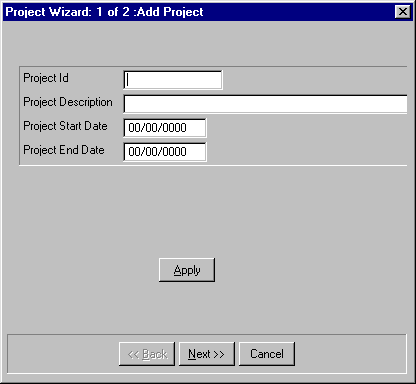
Try out the wizard and note following:
- To create a new Project record, enter the required values and click Apply. It would be better if clicking Next caused the record to be created. If that were so, the Apply button would not be needed at all.
- The Project Description is not a multi-line edit control and the date fields do not have spin controls.
- After you click Next, note that the controls on the second part of the wizard do not fit properly on the dialog.
- Finally, after you create a Project record and click Next, the value you entered in the Project ID field does not appear in the Project ID field on the second part of the Wizard.
These limitations are addressed in the remainder of this chapter.
- Close the wizard.

