

Now that you have modified the panel, you must regenerate and rebuild the function that displays it before you can see the changes.
To regenerate and rebuild the Project.Edit
If you still have the Generate and Build window open, switch to it. Otherwise, click the New Gen & Build window toolbar button.
Select Project.Edit.
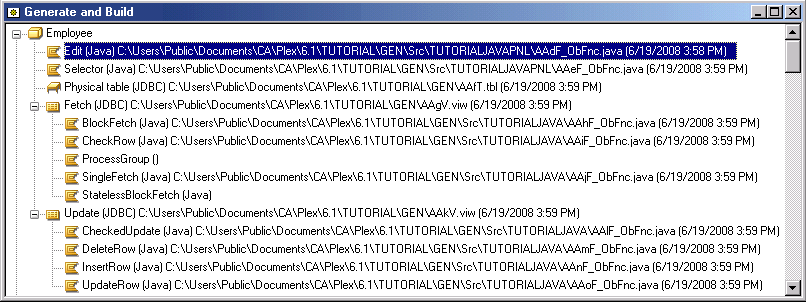
To rebuild a panel, you regenerate and rebuild the function that scopes it. Because you have only modified the Project.Edit.Panel object, you only need to regenerate and rebuild Project.Edit. If you had made changes that affected the scoped table or other objects, you would also need to regenerate and rebuild those other objects.
Click the Generate and Build toolbar button.
Click Yes when prompted to generate and click Yes when prompted to build.
When the Generate and Build process is complete, click Project.Edit in the Generate and Build window, and click the Run toolbar button.
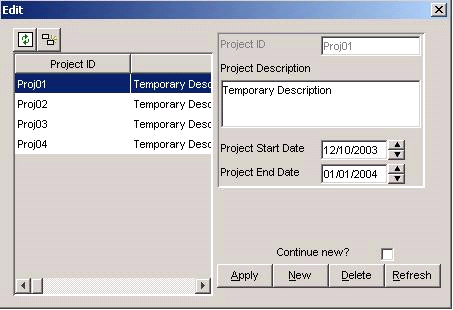
The modified dialog appears showing the data you already entered.
Create a database application for the McCready account. Contact is Jim Hauser, 415-555-3146.
Notice that the description is changed in the grid and detail regions.
Proj02: Create an email client for internal support staff.
Proj03: Convert the ODBC version of the McCready application to a System i version.
|
Copyright © 2014 CA.
All rights reserved.
|
|