

Click the Title Font... button and Performance Manager displays the Font Selection dialog, as shown in the following screen:
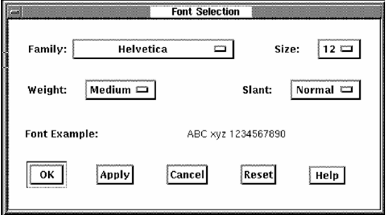
The Font Selection dialog lets you specify the following font characteristics:
Note: Font options not available on your server are disabled.
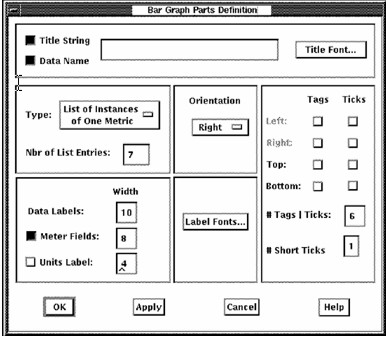
Specifies a list of instances of one metric or a list of metrics.
For example, to show the CPU Utilization for multiple processes on the system, use the List of Instances option.
To show a CPU mode (Interrupt, Kernel, Supervisor, and so on) for the system, choose the List of Metrics option since each metric has only one value associated with it.
Specifies the number of bars to be displayed.
Specifies the orientation of the bar graph's maximum value.
Specifies the space available for the data labels, based on the characteristics of the font you have selected.
Specifies the space available for the meter, based on the characteristics of the font you have selected.
Set the toggle button to include a meter for the bars. Specify the space for the meter in characters.
Specifies the space available for the units label, based on the characteristics of the font you have selected.
Set the toggle button to include a units label for the bars. Specify the space for the units label in characters.
The Font Selection dialog lets you specify label font characteristics.
Specifies whether tags (numeric values indicating a chart's scale) and tick marks are displayed on the left or right side or top or bottom of the chart. Tick marks can be displayed without tags. When tags are selected, tick marks are displayed automatically.
Specifies the number of tags and corresponding tick marks to be displayed. The default is six tags.
Specifies number of minor tick marks to be displayed between the major tick marks set in Number of Tags/Ticks. The default is one.
|
Copyright © 2008 CA.
All rights reserved.
|
|