

The Bar Graph Patterns and Colors dialog allows you set the pattern and color of the instrument graph, as shown in the following screen:
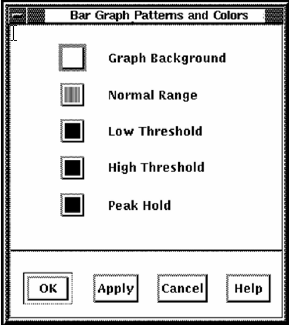
You can set the bar graph with the following attributes:
To set the Patterns and Colors for each of these attributes
Performance Manager displays the Pattern Editor dialog, as shown in the following screen:
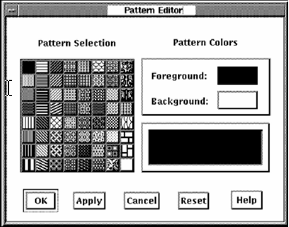
To change the graph's pattern color, click the Foreground or Background button. Performance Manager displays a color mixing dialog.
|
Copyright © 2008 CA.
All rights reserved.
|
|