

Dynamic trend views let you create a trend chart for a selected metric. The view is termed dynamic because it has the following options:
To use dynamic trend views, add them to a new dashboard, or edit an existing dashboard to add these views. The dynamic view editing features let you quickly create copies of dynamic views, select items for reporting, and select view settings.
Follow these steps:
The Edit Dashboard Layout page opens.
Note: Dynamic views require a larger amount of page space than other types of views. Add a dynamic view to a wide (multiple-column) area in the dashboard layout. Do not add a dynamic view to a single-column section of the layout.
The dynamic view type includes editing shortcut buttons. The view is empty until you edit it to select the items to include in the charts and the settings that you want to apply.
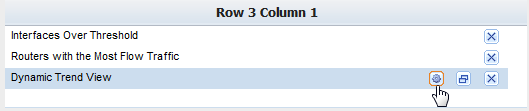
The View Settings dialog opens.
The view refreshes to reflect your updates.
The Edit Dashboard Layout page also lets you make copies of dynamic views.
 to place a copy of the view just below the original view in the layout.
Note: When you have edited the view to select items for reporting, you can change the view display option. Click the Edit icon  , and select 'Show List of Selected Items' to switch between the chart view and a list of the items that you selected to include.
|
Copyright © 2015 CA Technologies.
All rights reserved.
|
|