Reporting › Infrastructure Overview Dashboard › Top Interfaces Over Threshold
Top Interfaces Over Threshold
The Interfaces Over Threshold view in CA Performance Center lists the most heavily used interfaces throughout the enterprise. A table summary shows the interfaces whose utilization exceeds the configured thresholds, as reported in CA Network Flow Analysis.
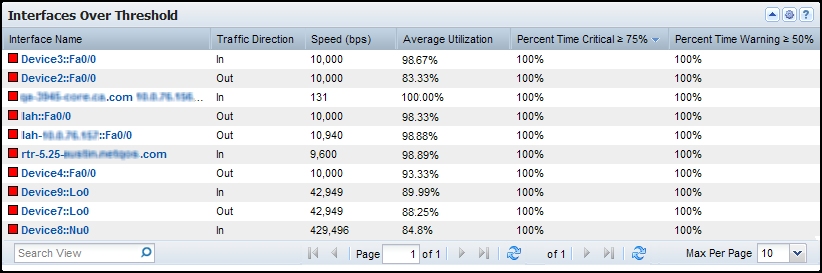
The Interfaces Over Threshold view shows the interfaces whose traffic exceeded the configured thresholds during the reporting period. The view includes the following information for up to ten top interfaces:
- Interface Name
-
Identifies the interface by its name. (Depending on the application setting for the name format, the name may be prefixed by the device name.)
- Traffic Direction
-
Shows whether the data was inbound or outbound with respect to the interface.
- Speed
-
Records the data speed that is defined for the interface.
- Average Utilization
-
Measures the average percentage of interface capacity that was used.
- Percent Time Critical
-
Shows the percentage of the reporting period time that the interface met or exceeded the user-defined Critical threshold.
- Percent Time Warning
-
Shows the percentage of the reporting period time that the interface met or exceeded the user-defined Warning threshold.
By default, views and reports show the most recent 24 hours of data.
To see the Interfaces Over Threshold view in CA Performance Center, go to one of the following locations:
- Infrastructure Overview dashboard
- Summary-type view in a custom dashboard
Available Actions for This View
You can perform several actions in this view, including the ones in the following list:
- Change the thresholds, the view name, and the context (the interfaces that can be used in the view) by editing the view settings as described in this topic.
- Re-sort the table data by clicking a column heading. Click again to toggle between descending and ascending order.
- Change the Max Per Page value to show more or fewer items on each table page.
- Change the columns that are shown in the table: Click near a column border, click Columns, then choose the columns that you want to display.
- Click an interface name to open the Interface context pages in CA Performance Center and review details or additional views.
How to Change the View Settings
Follow these steps:
- Click the Edit icon
 in the view title bar and click Edit.
The View Settings dialog opens.
- (Optional) Edit the text in the Title field to change the text that appears in the view title bar.
- (Optional) Edit the thresholds by changing any of the following values in the Interfaces Over Threshold Settings section:
- Critical - % Utilization: Specify the utilization percentage that is used to flag interfaces with a status of Critical, the highest level of concern. If the utilization for an interface has met or exceeded this percentage, it is marked with a red (Critical) status symbol.
- Warning - % Utilization: Specify the utilization percentage that is used to flag interfaces with a status of Warning. If the utilization for an interface has met or exceeded this percentage, but has not met the Critical threshold, the interface is marked with an orange (Warning) status symbol.
- Affected % of reporting period: Specify the percentage of the reporting period that a utilization percentage must be violated in order for the threshold to be met.
For example, if the ‘Affected % of reporting period’ value is 25, the threshold is met for the interfaces that have a utilization level at or above the threshold level during 25% of the reporting period. With the default reporting period of 24 hours, the list includes interfaces at or above the threshold value for six hours or more during the previous 24 hours.
- (Optional) Define a new context to filter the interfaces that can appear in the view: Select a group in the Context Settings tree.
Interfaces that are not in the selected group do not appear in the view, even if they violate a threshold. If you select a group, the defined context appears in the field under the Context Settings label.
- (Optional) Specify which users are affected by the settings: Select a value from the Apply Changes list:
- For All Tenant Users: Saves the changes so that they are only available to users associated with your tenant (possibly the Default Tenant).
- My User Account: Saves the changes to your user account as a default for this view.
- My Current Session: Reverts the changes when you log out.
- Click Save to save your changes, Cancel to exit without saving changes, or Use Defaults to restore the default values.
The View Settings dialog closes. The view refreshes to reflect your updates.
Find the Comparable View in the NFA Console
The Interfaces Over Threshold view in CA Performance Center is similar to the Interface Utilization view on the Enterprise Overview page in CA Network Flow Analysis.
|
Copyright © 2012 CA.
All rights reserved.
|
|

