

Customize the appearance of the Active Interfaces page as needed to make it easier to find information. You can re-sort tables, display details for routers, and change the maximum number of interfaces and CVIs that appear in detail pages under each router.
To sort the data, click a menu field. For example, to view all the routers with a red status indicator, click Last Poll. The results are sorted by the Last Poll timestamp.
To expand the details for one of the routers, click the arrow on the left side of the router row. A list of interfaces is shown below the router line.
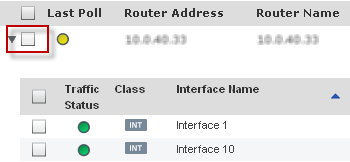
Note: The number of details that are visible in the expanded view is limited to the Max per Page value for the selected router.
To display or hide details for all the routers, interfaces, or CVIs, click Expand All or Collapse All in the upper-right corner.
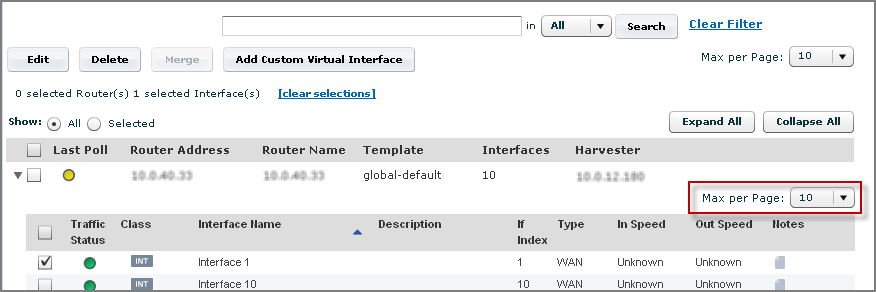
To change the number of items that are displayed, select a different maximum value from the Max per Page drop-down list. You can change the Max per Page value for the router list. You also can set a Max per Page value for the sublist of interfaces and CVIs under each router.
|
Copyright © 2013 CA.
All rights reserved.
|
|