

|
|
|
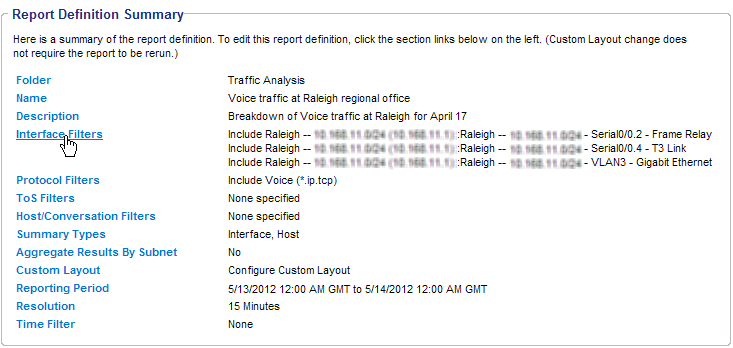
You can review the Report Definition Summary of a Custom Report to ensure that the report definitions are appropriate. From the Report Definition Summary page, you can access the Custom Report Wizard pages and can modify the report.
Follow these steps:
Note: Select a report that is not currently in execution--a report that does not have the status Running.
For example, click Interface Filters, Protocol Filters, or ToS Filters to add new filters or change existing filter settings.
Also See: Set Up Custom Reports
The Reports list opens and the modified report shows a status of Queued. When the report has been regenerated and is ready to be viewed, the status displays as Complete.
When you modify a scheduled report, it is queued to be generated at the next scheduled runtime.
| Copyright © 2012 CA. All rights reserved. | Tell Technical Publications how we can improve this information |