

|
|
|
SmartTrace definitions provide more targeted tracing than is available through the PT command. You can add and activate these definitions from the All Traces panel, which you can access from the Packet Tracing Menu or using the /TRALL shortcut.
CA NetMaster NM for TCP/IP provides a number of definition types that you can use. A definition type provides various criteria that you can specify. For example, a TCP trace provides the following criteria:
Example: Trace Packets in an Intermittent TCP Connection
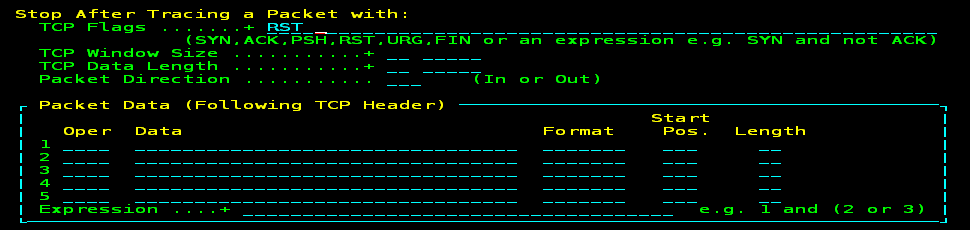
Resets are occurring in a TCP connection intermittently. You want to find out the packet activity before a reset. You decide to create a SmartTrace definition to capture this activity. You want the trace to stop when a TCP RST packet is received and capture the packets up to that point. The following process shows you how to create the definition:


| Copyright © 2012 CA. All rights reserved. |
|