

Now you are ready to look at the programs and instruct CA InterTest for CICS to monitor a program. As part of monitoring a program, the application automatically prevents all abends during execution.
Follow these steps:
The project name is highlighted.
 on the CA InterTest main window toolbar.
The Import PROTSYM Files dialog opens.
Defines the Testing Tools server. Select Basic Demo.
Defines the fully qualified data set name of the PROTSYM VSAM file.
Type CAI.PROTSYM, or substitute CAI.PROTSYM with the DSN provided by your CA InterTest for CICS administrator.
If you receive an error about failure to retrieve a member list, check with your CA InterTest for CICS administrator.
Note: You may be prompted to log on to your mainframe TSO here, if you have not already done so through CA InterTest for CICS.
The table is populated with the programs in the data set you chose.
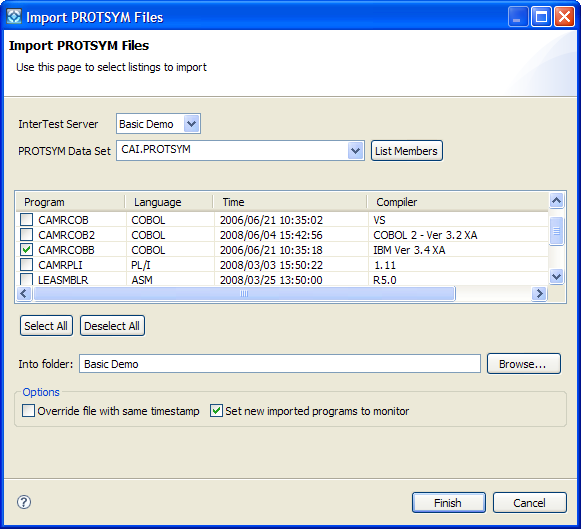
The name Basic Demo appears in the Into folder box.
Note: The CA InterTest for CICS administrator may have changed the name of the sample programs when installing the application. If you do not see the name of the demo program that you want to use, check with your CA InterTest for CICS administrator to find out the correct name.
The demo program displays in the InterTest Debug view in the Monitored Programs folder.
The program listing displays in the Program Listing area, with an outline of the program in the Outline view.
CA InterTest for CICS installs demo programs to use for this tutorial that are designed for use with the CA InterTest for CICS Eclipse UI tutorial. Use the compile procedures created during installation to compile a demo program, populate the PROTSYM, and link the program.
Note: The default names for the demo programs for each type of application may have been changed by your CA InterTest for CICS administrator during installation.
|
Copyright © 2015 CA Technologies.
All rights reserved.
|
|