

As a desktop support analyst, you can deploy Debian software packages on target Kubuntu computers using software delivery. Software deployment through software delivery lets you send software packages to any managed Debian computer and deploy them. The native Debian packages are not physically stored in CA ITCM; they are stored in the Debian master and mirror repositories. Hence deployment of Debian packages is different from the regular SD packages. The following diagram illustrates the steps that you perform to deploy Debian packages using software delivery:
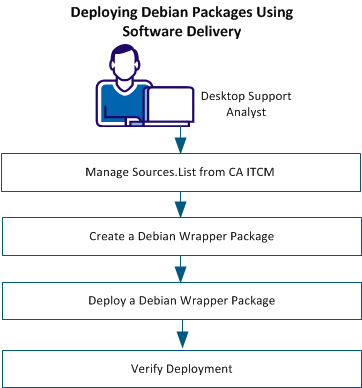
Perform the following tasks to deploy Debian packages using software delivery:
The Debian computers maintain a file named sources.list that contains the details of repositories, distributions, and components from which the packages can be obtained. To deploy Debian packages through software delivery, you must manage the sources.list from CA ITCM.
Follow these steps:
Note: This configuration policy change must be applied to computers or group of computers that use a particular source repository. For example, you have a master repository and five mirror repositories. The mirror repositories are located in different offices for faster download. You want the computers in these offices to connect to the mirrors in the respective locations. In this case, you create five configuration policies. You then open each of them and configure the sources table with the mirror repository details for that location, and apply the policy to all the computers in that location.
Note: When the policy is applied on target computers with at least one row in the sources.list table, CA ITCM renames the original sources.list as sources.list.original.CADSM. It then creates a sources.list file and adds the information from the Sources table.
Specifies the repository name. The value in this field must match the Repository Name in the Repositories table; otherwise, software deployment can fail. Specify the details of only those repositories that the target computers must connect to.
Specifies how the host name for the repository is assigned.
Specifies that the host name provided in the repository table must be used. This option is applicable only for master and mirror repositories and not to mirror templates.
Specifies that the host name of the repository is provided in the Dynamic Repository Host configuration policy under Control Panel, Configuration, Configuration Policy, Policy Name, DSM, Software Delivery, Shared, External Repositories, Debian. This option is only applicable for mirror templates.
Note: Dynamic assignment is helpful when the target computer roams or moves. In this case, the host name and URI changes, but the distributions remain the same. The management of the assigned distributions is separated from the physical locations of the mirrors.
Specifies that the host name of the repository is the scalability server. The host name value in the sources.list file is dynamically updated based on the scalability server of the target computer. This option is only applicable for mirror templates.
Specifies the distribution that contains the packages that you want to deploy.
Specifies the components that contain the packages that you want to deploy.
Note: You can specify multiple components; separate the components with a space.
Specifies format of the Debian packages in the repository.
Specifies that the packages are in binary format. This format is equivalent to "deb" in sources.list that is.deb <URI> <DISTRIBUTIONS> <COMPONENTS>.
Note: You can also define this parameter in the Default Configuration Policy of the domain managers. This action is helpful when the target computer moves from one manager to another. The target can automatically connect to the default repository host name configured for the new manager, without any additional configuration.
The configuration policy is pushed to the target computers.
The repository details are added to the sources.list file.
A Debian wrapper package includes references to native Debian software packages stored in an external Debian repository. You cannot directly deploy a native Debian software package using CA ITCM; you need wrapper packages.
Note: Though you can add multiple master and mirror repositories to the Repositories table, you can create wrapper packages only from the first (alphabetically) available master repository, whose package metadata has been extracted. For more information, see Extract Package Metadata from the Repository.
You can create a Debian wrapper package in one the following ways:
Follow these steps:
A list of packages in the group is displayed.
Note: If you want to create a wrapper package based on an existing wrapper package, click New Based On on the Actions panel.
The New Debian Wrapper Package wizard opens.
The new Debian wrapper package is added to the list of registered software packages.
Note: If you want to edit the wrapper package, unseal it first and then click Edit on the Actions panel.
Deploying a Debian wrapper package on target computers sends a software job to the agent. The job then installs the software on the target computers at the scheduled time.
Verify the following prerequisites before you start the deployment:
Follow these steps to deploy a package from Web Console:
Follow these steps to deploy a package from DSM Explorer:
The Deploy Software Package Wizard appears.
The software job is sent to selected computers. At the scheduled time, the jobs download the Debian packages from the Debian repository that is defined in sources.list on the target computer and run the installer.
If you first install a version of a wrapper package on a target computer, and you later install another version of the same wrapper package on the same computer, the first version is uninstalled and all the packages in the second version installed.
If a native Debian package is part of more than one Debian wrapper package, and you deploy such Debian wrapper packages on the same target computer, the Debian package is installed or updated in both the deployment jobs. During the uninstallation procedure of one of the Debian Wrapper packages, the Debian packages that are uninstalled are checked. If they are referred in another Debian wrapper package, the uninstallation job completes without uninstalling the shared Debian package.
You can view the configuration of sources.list at the following inventory location:
Follow these steps:
The Package Resource List configuration is viewed.
Verify the deployment to help ensure that the wrapper package is deployed successfully on the target computer.
Note: The Debian software installer does not return the success or failure message to CA ITCM. The status of the SD job only reflects the status of wrapper package deployment and not of the actual Debian software package.
Follow these steps:
The status of the job is displayed.
The job output, and success or failure messages are displayed.
|
Copyright © 2013 CA.
All rights reserved.
|
|
