

As a desktop support analyst, you configure the external Debian repository details in CA ITCM. This configuration lets you browse the repository from CA ITCM, create mirrors of the repository, and deploy Debian packages using software delivery. The following diagram illustrates the steps that you perform to configure external Debian repositories details in CA ITCM:
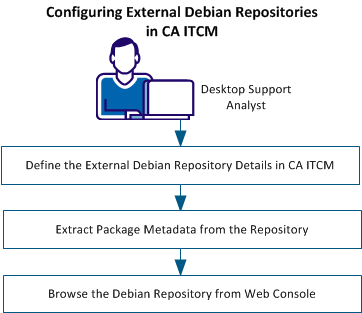
Perform the following tasks to configure external Debian repositories in CA ITCM:
Define the details of the external Debian repository that CA ITCM must connect to. CA ITCM uses this information to browse the repository, create mirrors, and deploy software packages.
Follow these steps:
Note: The changed configuration policy must be applied to all the target computers. Hence, select the Default Configuration Policy.
The policy becomes editable.
Specifies a unique repository name. You can specify any name but verify that the name is unique across the Repositories table.
Specifies whether the repository is a master, mirror, or mirror template.
Specifies that the repository is a master. A master repository is used while creating wrapper packages. CA ITCM cannot deploy native Debian packages directly. Create wrapper packages that include references to the native Debian packages and then deploy the wrapper packages.
Following guidelines apply for master repositories:
Specifies that the repository is a mirror that is created from a master or another mirror.
Specifies that the mirror is only a template and not a physical repository. The mirror template is only a placeholder for multiple mirror repositories that have the same configuration. When you have numerous mirrors, you can create one mirror template per parent instead of creating a row each for all the mirrors. Mirror templates are used for software deployment and repository extraction but not for mirror synchronization. The host name of the computers hosting the mirrors is dynamically replaced at run time.
Specifies the repository type.
Specifies the transfer protocol that is used for transferring the packages from the repository to the target computers. Select HTTP, FTP depending on what you have configured. For more information about this configuration, see Setting Up FTP and HTTP Share for Software Packages and OS Images.
Note: If the repository is a master and you want to browse the repository and create wrapper packages from it, configure the repository as an FTP share.
Specifies the host name of the computer that hosts the repository. For mirror template repositories, do not specify the host name because the host name is dynamically provided at run time. Even if you specify, the host name is ignored for mirror templates.
Specifies the root node of the repository.
The repositories information is updated on all target computers.
Extracting package metadata from the repository lets you view the Debian package details on DSM Web Console.
Note: The following steps apply for extracting the package metadata from both master and mirror repositories.
Follow these steps:
The engine log is displayed.
The New Task Wizard opens.
Note: Ensure that you disable the system firewall to execute the task successfully.
Note: As the repository server is on Linux, values provided in the following Distribution and Components Name fields must be case-sensitive; they must match the case in the repository server. For example, if the repository server location for ftp://172.16.0.12/ubuntu/dists/lucid/main/binary-i386/, the distribution name must be specified as lucid and not as Lucid or LUCID.
Specifies the repository name from which you want to extract the package metadata. The list displays the repositories you had defined in the Repositories configuration table.
Note: You cannot create two engine tasks with the same repository and distribution combination.
Specifies the host name of the repository. This field is enabled only for repositories of type Mirror-Template. For the master and mirror repositories, the host name is automatically taken from the Repositories configuration table.
Specifies the distribution from which you want to extract the package details.
Note: An engine task can extract data only from a single distribution. If you want to extract data from multiple distributions, create additional engine tasks.
Specifies the components that you want to extract. Click Add to add more components.
The System Engine creates the task and executes it at the schedule time. You can monitor the task by clicking the SystemEngine and review the status in the Task List section on the right pane.
Note: You can also browse the repository from Web Console while the engine task is still in progress. The Web Console displays the distributions and packages as and when they are extracted from the repository.
You can browse the contents of a Debian repository in Web Console to know what packages are present in the repository.
Follow these steps:
A list of distributions in the selected repository is displayed. The Synchronization Status column shows the status of the repository extraction task. You can also click View under the Synchronization Log column to view the progress of metadata extraction and errors that are encountered, if any.
Note: If you open the repository before the extraction task completes, it is possible that you do not see all the distributions in the list.
A list of Debian packages in the distribution is displayed.
|
Copyright © 2013 CA.
All rights reserved.
|
|
