

Extended Network Connectivity (ENC) › ENC Deployment Scenarios › ENC Deployment Scenario - The Branch Office
ENC Deployment Scenario - The Branch Office
In this scenario, the parent company maintains the domain manager and scalability server on the main office network (internal network). The branch office has a LAN with DSM agents installed on their computers (client network). Both offices are protected by firewalls and connected to the Internet.
The following illustration shows the network layout in a sample branch office deployment scenario:
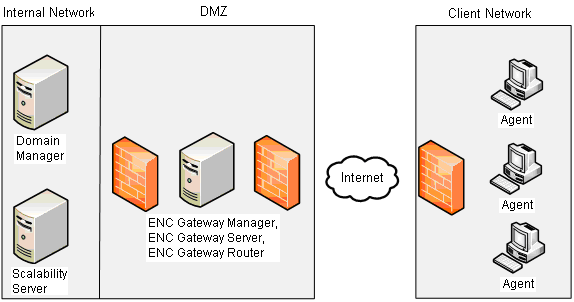
In this scenario, it is assumed that all computers in the network, including the ENC Gateway Server computers, have at least a DSM agent installed.
The DMZ (demilitarized zone) allows connectivity from the internal network into the DMZ but no further. Computers in the DMZ can connect out to the Internet but not to the internal network.
The required deployment and configuration steps in this scenario are as follows:
- Deploy the ENC infrastructure in the main office (internal network)
- Deploy DSM agents to the branch office (client network)
- Configure the agents in the branch office to report to the main office scalability server
In the main office network the following activities apply:
- Create a DMZ in the main office network, if not already present. This is required because the ENC Gateway Servers have to be visible to the branch office, which is assumed to connect in over the public Internet.
- Install a DSM domain manager, scalability server, agents and ENC Clients as required in the parent network
- Install a DSM agent, an ENC Client, Manager, Server, and Router on a computer in the main office network DMZ. Configure the agent to register with the scalability server in the internal network.
- Install ENC certificates on all ENC Gateway-aware computers, as described in the Certificate Management section. This covers computers in the internal network and the DMZ. These are required for ENC Gateway authentication.
- Install ENC certificates on the DMZ computers.
- Do not start up the ENC Gateway Servers just yet. At this point, the ENC Gateway Server is configured with no authorization rules and so will reject all connections. This means, that the DSM infrastructure in the DMZ cannot contact the domain manager in the main office network and thus cannot receive configuration policy containing the authorization rules.
- Open the DSM Explorer and configure the security policy you require for ENC. Configure the ENC Gateway with a security policy. This must cover access for computers in the main office network as well as those in the branch office. At the moment, however, this cannot be sent to the ENC Gateway Servers from the domain manager because there is a catch-22, that is, the computer cannot receive a policy until it registers with the domain manager, and it cannot register until it gets a policy which defines the authorization rules that allow it to connect to the domain manager.
- To fix this, the ENC Gateway Server has to be “bootstrapped” with rules sufficient to allow a connection to the domain manager. Once established, the domain manager can send the real policy to override the bootstrap policy.
First, the real policy must be entered into the configuration policy on the domain manager. This can be done using one of two methods:
- One method is to open the DSM Explorer and configure the security policy you require for ENC using the configuration policy editor. The GUI provides a custom dialog to help compose the rules.
- The alternative method is to compose a text file with your default rules and import them in bulk using the encUtilCmd utility. (For the detailed description of the encUtilCmd and all its options, see the EncUtilCmd Command Reference which you can find in the CA Bookshelf under the Reference Guides category.) Note that encUtilCmd also provides a means of verifying the rules before you make them “live”.
At minimum, these rules should allow the DSM infrastructure in the main office network to contact and register with the ENC Gateway infrastructure in the DMZ.
We suggest that you compose the rules using the second method, as the rules file you create can then be used on both the domain manager and the ENC server computers. The GUI can be used for future modifications to the policy.
Apply the rules to the domain manager using the “encUtilCmd importdb” command. This adds the rules to the DSM configuration database. Once there, they can be delivered through the usual policy mechanism once the ENC server computers connect.
Apply these rules to the ENC Gateway Server in the DMZ using the "encUtilCmd import" command. This will bootstrap the server with authorization rules and allow the computer to contact the domain manager and register.
Start CA IT Client Manager on the ENC Gateway Servers so that they pick up the new rules and allow ENC connections to proceed
- By default, the configuration policy in the domain manager is set to locally managed to prevent accidental overwriting by a blank policy. Set this to centrally managed. When CA IT Client Manager registers successfully, the initial default rule will be overwritten by the policy sent down from the domain manager.
- Wait 10 minutes, and then check that the computers in the DMZ have now registered and are visible in the GUI.
- If no computers are visible, it may be that the default rules are incorrect or the new policy has cut off access. To diagnose this, examine the NT application event log on the ENC Gateway Servers.
In the branch office the following activities apply:
- Install the required DSM agents on each computer in the branch office network. The ENC Gateway functionality is installed by default but needs to be configured. Configure the clients to register with the ENC Gateway Server in the main office DMZ network. Since the ENC Gateway is not yet working between the main and branch office, DSM deployment cannot be used. Instead, the installation can be done using a number of methods that depend on how many computers are affected, for example:
- Manual installation from DVD, if only a few computers are to be installed
- Installation of a package on user logon from a NT domain logon script.
- Installation of a temporary domain manager and scalability server within the branch office network. This can be done using a real or virtual machine that is sent to the branch. Use the deployment feature of CA IT Client Manager to send out the agent package. Once deployment is complete and all agents are registering with the domain manager in the main office, the temporary domain manager in the branch office is removed.
- Check that the computers in the branch office register, by checking the All Computers group in the GUI back in the main office.
- Perform the usual validation tests employed by your organization to ensure that CA IT Client Manager is fully functional.
Copyright © 2013 CA.
All rights reserved.
|
|