

The RC Web Replayer interface displays the Open a Recording dialog, which lets you choose a recorded session to replay, and an Options portlet that provides scrolling and viewing options. Use the Options/Hide Options button to display or hide the portlet.
Provides scrolling options that let you control the host image. Valid options are as follows:
Displays the host image in the viewer window without modification.
Shifts to display the active area as the mouse moves around the screen. This option applies to a viewer computer with a smaller resolution than the host computer.
Scales or shrinks the host image to fit the viewer window.
Shrinks the host image to fit the viewer window.
Scales the host image proportionally in the viewer window. This option applies to Scale to Fit and Shrink to Fit modes.
Indicates whether auto pan follows the host mouse. The Auto-Pan Follows Host Mouse option does not enable or disable the Scroll Mode option for auto pan—it changes the way auto pan mode operates.
If this option is disabled (that is, False) and auto pan is selected as the scroll mode, recorded movements of the host mouse do not cause the playback window to pan and follow the recorded mouse pointer. The playback window auto pans to follow the host mouse only when moved over the recording window.
If this option is enabled and auto pan mode is selected as the scroll mode, recorded movements of the host mouse do cause the playback window to pan and follow the recorded mouse pointer.
Note: The host mouse pointer takes priority in dictating the auto pan position.
Default: True
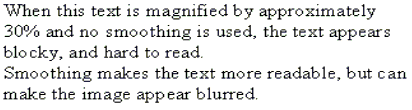
Specifies whether a smoothing filter is used when magnifying a recorded image. The Use Smoothing When Magnifying option is used with the Active Replay scroll mode, Scale to Fit. If enabled, a smoothing filter is applied to the image when scaling the recording up. The filtering removes the otherwise blocky effect of enlarging a recorded image. The filter takes effect only when the replayer is in Scale to Fit mode and when magnifying the image, so that it fills the replayer window.
Default: True
Example: Image Normal Size
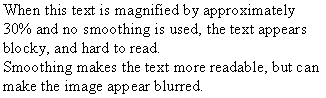
Example: Image Magnified, No Smoothing
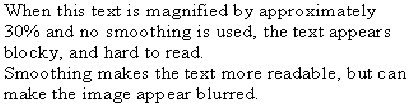
Example: Image Magnified with Smoothing
Specifies whether a smoothing filter is used when shrinking a recording image. The Use Smoothing When Shrinking option is used with the scroll modes, Scale to Fit and Shrink to Fit. If selected, the rows and columns of pixels that are lost in the scaling process are merged to give a more accurate image when scaling the recording down. This greatly improves the readability of text when scaling the image down. This filter takes effect only when the replayer is in Shrink to Fit or Scale to Fit mode and is shrinking the recording, so that it fits in the replayer window.
Default: True
Example: Image Normal Size
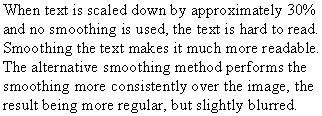
Example: Image Shrunk, No Smoothing
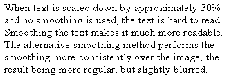
Example: Image Shrunk with Smoothing
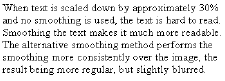
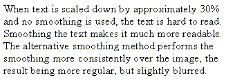
Specifies whether the Use Alternative Smoothing Method option is used with the scroll modes, Scale to Fit and Shrink to Fit. This setting changes the filtering method used by the Use Smoothing When Shrinking option. If True, a bilinear filter is used to provide a smoother scaled image, but the result is fuzzier and it is slower than the default smoothing mode.
Default: False
Example: Image Shrunk with Normal Smoothing
Example: Image Shrunk with Alternative Smoothing
|
Copyright © 2013 CA.
All rights reserved.
|
|