

As a desktop support analyst, you want to discover software on target computers so that you get an inventory of software installed on the target computers.
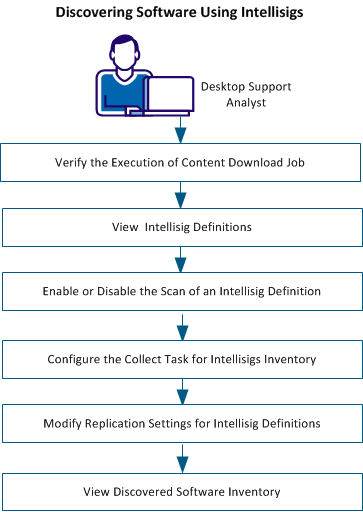
The Default Software Contents Download job downloads the Intellisigs that are provided by CA from the CA website. Verify that this job has been executed at least once from the time you installed this release. The successful completion of the job helps ensure that the CA-provided Intellisigs are downloaded to your domain manager.
Follow these steps:
The engine log and Task List is displayed on the right pane.
If either of these conditions is false, you can either run the job immediately or wait till the next scheduled time of the job. If both the conditions are satisfied, you can view the downloaded Intellisig definitions.
Note: If you want to create and use custom Intellisigs, see Creating Custom Intellisigs.
An Intellisig includes a master definition and several detected definitions. A master definition is the first-level object that contains the Intellisig details such as name, creation details, target platform, and the script details. The detected definitions include the product, release, and patch definitions that are created only after the Intellisig detects them on a target computer. After you download Intellisigs, you can only view the master Intellisig definitions and their details. The detected definitions are available only after the Intellisigs collect task detects the software on a target computer. To view the Intellisig definitions, click Software, Definitions, Intellisigs in DSM Explorer.
By default, all the Intellisigs are enabled for software scanning. If you temporarily do not want the software scanner to scan an Intellisig, you can disable the scan of the Intellisig. You can enable it later when you want the scanner to discover it again.
Note: You can disable only at the Intellisig level, not at the product, release, or patch definition level.
Follow these steps:
All the Intellisigs are displayed in the right pane.
When the collect task runs next time, the disabled Intellisigs are not sent to the agent. After the collect task runs, discovered records from previous scan if any, are hidden on the All Computers, computer name, Software, Discovered node. However, the detected product, release, or patch definitions are not removed from Software, Definitions, Intellisigs
To collect software inventory using Intellsigs, you must configure the collect task to include Intellisig scanning.
Follow these steps:
Note: Collect tasks configured at the group-level are applicable for all the computers in the group.
Note: You can select both Signature scan and Intellisig scan as part of the same collect task. Such a selection is applicable when you have some definitions as signatures and some as Intellisigs. When the same software is detected by both the scanners, the software is listed twice in the discovered software list. However, the list provides the discovery source that specifies whether the software was collected by the signature or Intellisig scan.
The collect task is configured. When the collect task runs next time, the agent runs the Intellisig scripts, and collects Intellisigs inventory.
Important! CA Patch Manager needs signature scan to be enabled. If you are using CA Patch Manager for applying security patches on your target computers, verify that you have configured signature scanning also on target computers. Configuring only Intellisig prevents patch management from working properly.
You can view the discovered software to see the software discovered by Intellisigs on agent computers. The discovered Intellisigs are available from the following locations in DSM Explorer:
Note: For more information about software definitions, categories, and manufactures, see the DSM Explorer online help.
|
Copyright © 2013 CA.
All rights reserved.
|
|
