

|
|
|
Use the following steps to run a command script.
To run a command script
 on the Command Console toolbar or select the Open Script command on the Script menu. The Open dialog displays where you can choose the script that you want to run.
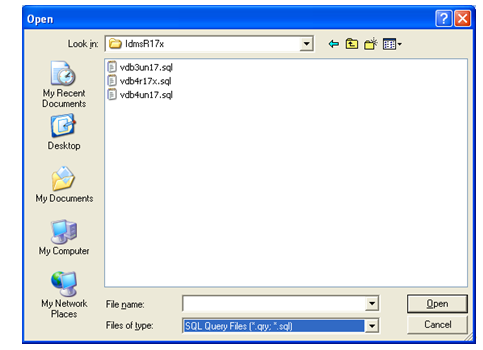
Note that the file extension that is used in the Open dialog is based on the processor type that you selected in Step 1.
 on the Command Console toolbar, select the Go command from the Script menu, or press F5 to execute the command script.
If you have created a new command script or edited an existing script, you can save your script file by clicking the Save button  on the Command Console toolbar or selecting the Save Script command on the Script menu. When you do so, the Save dialog displays where you can save the script and execute it at a later time.
| Copyright © 2011 CA. All rights reserved. | Tell Technical Publications how we can improve this information |