

How to Save a Set of Commands as a Qfile › Using One Qfile to Create Different Reports
Using One Qfile to Create Different Reports
In this example, you use the same qfile to create two or more reports that are nearly the same. Using Execute with new criteria, you can suspend qfile execution and change the retrieval selection criteria used to build the report.
Example
By executing the SALARY qfile and modifying the retrieval criteria, you can create two reports:
- One displays all salary grades above $30,000.
- One displays all salary grades below $30,000.
Using One Qfile to Make More Than One Report:
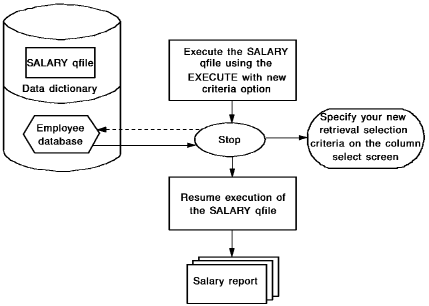
In this example, you execute the SALARY qfile using the following steps:
- Execute the SALARY qfile using Execute with new criteria.
- CA OLQ starts to execute the qfile. Execution continues up to the first statement that would retrieve data from the database.
- CA OLQ suspends execution of the qfile and displays the Column Select screen.
- You can change the retrieval criteria to display only those salary grades larger than 16.
- When you press [Enter], CA OLQ resumes execution of the qfile.
Copyright © 2013 CA.
All rights reserved.
|
|