

As a member of the development team, you use the CA ADS application compiler (ADSA) to define an executable structure for an application. ADSA screens lead you through the steps necessary to define the functions, responses, and task codes that make up the application's structure.
When you have defined the application structure, you use ADSA to create a load module for the application. When you use ADSA screens to define the application structure, you are implicitly coding the flow of control for the application.
ADSA screens
ADSA screens are designed in accordance with the CUA definition of SAA. All screens have:
Menu screens also have an action bar, a message area, and a command line.
 ┌-     Add  Modify  Compile  Delete  Display  Switch
 │   .______________________________________________________________________.
 └-
 ┌-                   CA ADS Application Compiler
 │
 └-              CA, Inc.


 ┌-
 │      Application name . . . .    ________
 │      Application version  . .    ____
 │      Dictionary name  . . . .    ________
 │      Dictionary node  . . . .    ________
 │
 │      Screen . . . . . . . . . _    1. General options
 │                                    2. Responses and Functions
 │                                    3. Global records
 │                                    4. Task codes
 └-

            Copyright (C) 1999 CA, Inc.

    Command ===>
    Enter  F1=Help  F3=Exit  F10=Action
Steps
To define the sample Department application structure, you will perform the following steps:
After you finish defining the Department application structure, you can exit from ADSA and optionally execute the application to test out the definitions that you have made. If you need additional information at any time about the use of ADSA, see "Using ADSA" in Appendix B.
Note: Only the menu access can be tested until prototype maps and dialogs are created.
The following diagram shows an overview of the flow and structure of ADSA.
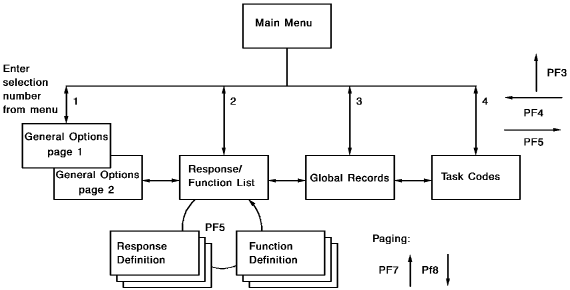
Note: This overall structure applies to the MAPC and ADSC compilers as well as to ADSA.
|
Copyright © 2013 CA.
All rights reserved.
|
|