

Using Non-SQL DML Statements to Access a Database
A non-SQL defined database is defined by a schema. A schema typically includes definitions for the database records required by your application. For example, the schema for a fully developed personnel application probably would include records for employee information, job descriptions, and hospital and dental insurance information.
To promote efficient use of the database and other system resources at runtime, you restrict each dialog to a specific subset of the database. Each subset of the database is defined by a subschema. The subschema identifies the subset of the database that the dialog can access at runtime.
The way that a subschema relates a dialog to the application's database is shown below. Schemas and subschemas usually are defined by database administrators (DBAs) or system administrators, based on application requirements. A subschema determines the portion of the database (schema) available to the dialog at runtime.
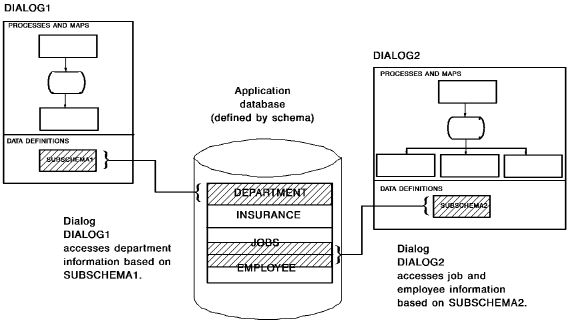
You need to associate a subschema with each dialog that accesses a non-SQL defined database using non-SQL DML statements. For example, you will associate a subschema with dialog XXXDADD because commands in process module XXXDADD-RESPONSE access the database to store new department information using non-SQL DML statements.
You associate the subschema with the dialog before you add process XXXDADD-RESPONSE so that ADSC can verify the process module's database commands.
You use the Database Specifications screen to associate a subschema with dialog XXXDADD.
Using SQL Statements to Access a Database
An SQL-defined application database is defined by tables associated with a schema. A schema typically includes definitions for the tables required by your application. For example, the schema for a fully developed personnel application probably would include tables for employee information, job descriptions, and hospital and dental insurance information.
To promote efficient use of the database and other system resources at runtime in the SQL environment, you identify an access module to be associated with the dialog. An access module identifies the method of access that the dialog will use at runtime.
Access modules are made up of relational command modules (RCMs), and are usually created by the application developer.
For information on creating an access module, see CA IDMS SQL Programming Guide.
Modifying the Sample Dialogs
In the XXXDADD and XXXDUPD dialogs, you are accessing a non-SQL defined database. Therefore, you must associate a subschema with each of these dialogs.
You use the Database Specifications screen to associate a subschema with dialog XXXDADD.
Accessing the Database Specifications Screen
To access the Database Specifications screen, you enter 3 at the Screen prompt on the Main Menu.
    Add  Modify  Compile  Delete  Display  Switch
 ._____________________________________________________________________________.

                         CA ADS Online Dialog Compiler

                     CA, Inc.


    Dialog name . . . . . . .   XXXDADD
    Dialog version  . . . . .   1
    Dictionary name . . . . .   DEMO
    Dictionary node . . . . .   ________

    Screen  . . . . . . . . .   3  1. General options
                                   2. Assign maps
                                   3. Assign database
                                   4. Assign records and tables
                                   5. Assign process modules

            Copyright (C) 2003 CA, Inc.

 Command ===>
 Enter  F1=Help  F3=Exit  F10=Action
Sample Database Specifications Screen
The Database Specifications screen is displayed.
                             Database Specifications

                         Dialog  XXXDADD   Version     1


   Subschema . . . . . . . . . . . .   ________
   Schema  . . . . . . . . . . . . .   ________
   Version . . . . . . . . . . . . .   ____

   Access Module . . . . . . . . . .   XXXDADD

   SQL Compliance  . . . . . . . . .   _ ANSI-standard SQL

   Date Default Format . . . . . . .   _ 1. ISO
   Time Default Format . . . . . . .   _ 2. USA
                                         3. EUR
                                         4. JIS


 Enter  F1=Help  F3=Exit  F4=Prev  F5=Next
Screen Prompts
To associate a subschema with a dialog, you use the following Database Specifications screen prompts:
For example, schemas typically are not unique when duplicate, identical development and production databases are defined.
If you know the name of your schema, go ahead and specify it here.
Modifying XXXDADD Dialog
Modify the XXXDADD dialog to include the subschema EMPSS01.
                             Database Specifications

                         Dialog  XXXDADD   Version     1


   Subschema . . . . . . . . . . . .   empss01
   Schema  . . . . . . . . . . . . .
   Version . . . . . . . . . . . . .

   Access Module . . . . . . . . . .   XXXDADD

   SQL Compliance  . . . . . . . . .   _ ANSI-standard SQL

   Date Default Format . . . . . . .   _ 1. ISO
   Time Default Format . . . . . . .   _ 2. USA
                                         3. EUR
                                         4. JIS


 Enter  F1=Help  F3=Exit  F4=Prev  F5=Next
Note: By default, the access module is given the same name as the dialog.
When you press [Enter], ADSC associates the named subschema with the dialog if there are no errors, and then redisplays the screen with a confirming message.
A different message is displayed if ADSC detects any errors.
Read the message to determine the problem. Make sure that you have specified the correct subschema on the Database Specifications screen. If you didn't specify a schema name, ask others at your site whether a schema name is required. After you change information on the screen, press [Enter] again.
If the error persists, verify that you specified the correct version of the subschema.
You are now ready to add process modules to the dialog definition. Return to the Main Menu by pressing [PF3].
|
Copyright © 2013 CA.
All rights reserved.
|
|