

You can create a configuration using the Generation Configurations dialog. You can create configurations with the same name for different models irrespective of whether the configuration is a file-based configuration or a model-based configuration.
For file-based configurations, the configuration names are not case-sensitive.
For model-based configurations, the encyclopedia stores the model-based configurations with configuration names in a case-sensitive format. You can create two configurations with the same configuration name if you create the configurations in two different subsets. If the two configurations have the same configuration name and case, the upload applies renaming logic and creates a unique configuration name for the second configuration that is created. If the two configuration names are in a different case, then both the configurations are stored in the model without being renamed.
For model-based configurations where the model is checked in, you can rename the configuration from CA Gen Studio only by checking out the configuration from the model with delete protection.
Note: The Encyclopedia functionality provides a function for renaming the configuration outside of CA Gen Studio.
Follow these steps:
The Generation Configuration menu option and toolbar icon are enabled.
The Generation Configurations dialog opens.
A new configuration is added under the configuration type in the left pane. By default, a system generated name is assigned to the new configuration; however, you can modify the name by providing a new configuration name in the Name field.
You can edit the configuration settings in the following tabs on the right pane:
Defines the local model, the target environment values, the generation options, and the dialects for the selected generation configuration.
Defines the database-specific generation settings for the selected DDL options.
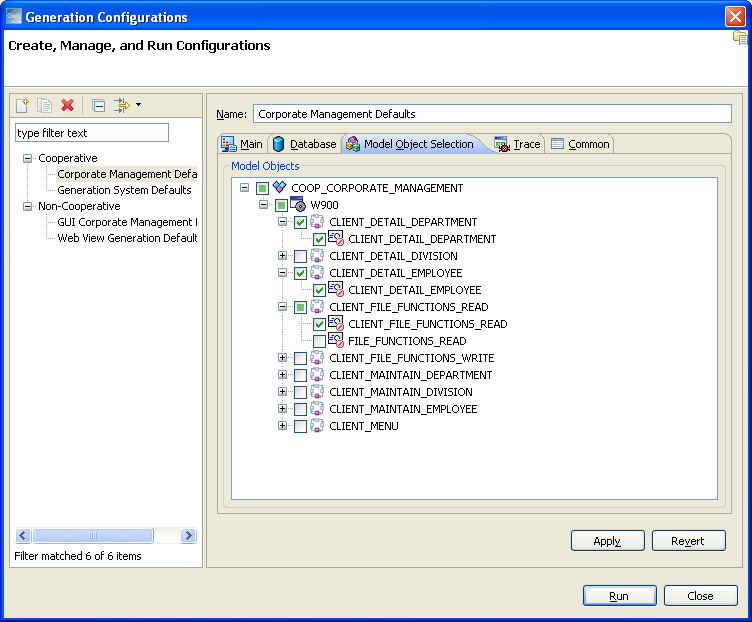
Lists a tree hierarchy of all the Business Systems that are associated with the model selected in the Main tab. Only the valid objects for the selected configuration type are displayed in the hierarchy.
Note: If your configuration instance is saved to a model, the model objects that are in Read protection are not displayed in this tab.
The tree hierarchy lists the following objects in the same order as mentioned:
Business System
Packaging Type (Cooperative or Non-cooperative)
Load Modules
Procedure Steps
Action Blocks
Primary Windows/Dialogs
Secondary Dialogs
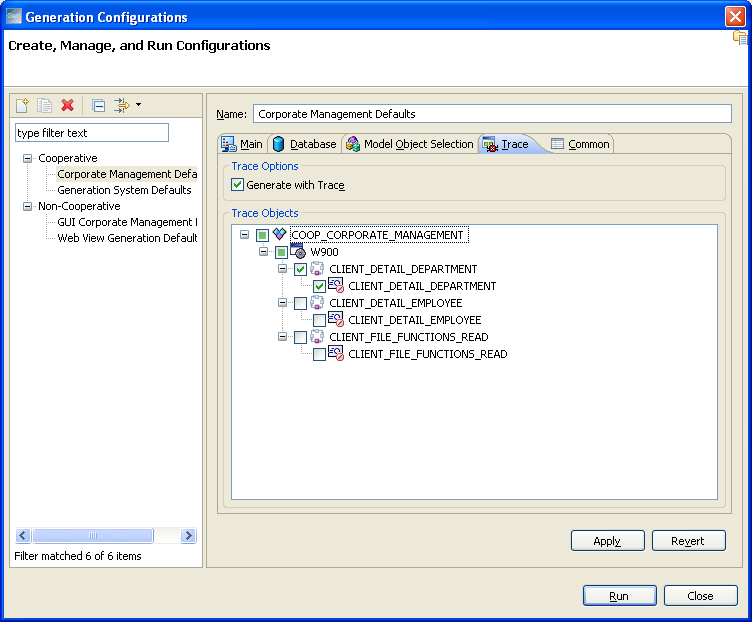
Defines the objects for which you can generate trace information. Only the objects that are selected for generation in the Model Objects Selection tab can be set to trace.
Note: For a file-based configuration, all the objects that are selected for generation in the Model Object Selection tab are also listed in the Trace tab. For a model-based configuration, the objects that are in Read protection are not displayed.
Defines the settings to save the configuration either as a file-based configuration or as a model-based configuration. You can configure the Console view to display the generation output.
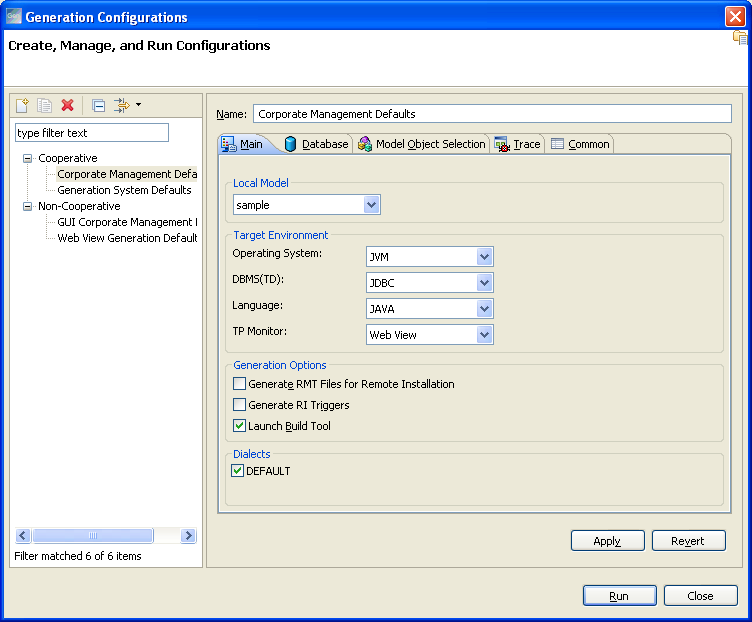
Displays the model name that is associated with the current configuration. When creating a configuration, the first open model is selected in this drop-down by default. For a model-based configuration, this drop-down list is disabled if the current model or the subset is read-only or portions of the configuration cannot be deleted.
If you change the model selection in this drop-down list, all the selections of the model-specific objects in all the tabs are reset.
For a model-based configuration, you cannot select a read-only model from the Local Model drop-down list.
Specifies the values for the Target Environment. The values selected in these lists are inter-related and each field displays only the valid options that are based on the selection in other fields.
For example: Any change in the Operating System drop-down list updates the DBMS (TD) and the Language drop-down lists in a way such that these lists have only the valid options for the selected Operating System.
Specifies the operating system under which the generated application executes.
Specifies the database management system (DBMS) technical design that is used by the generated application.
Note: The DBMS(TD) drop-down list is disabled if the current model or the subset is read-only or the selected database objects are in Read protection. You cannot select the value <NONE> if the configuration is stored in a model and it includes protected database objects that are selected from the table in the Database tab. You cannot select the value JDBC or MS/SQL if the configuration is stored in a model and it includes protected tablespace objects that are selected from the table in the Database tab.
Specifies the high-level programming language in which the Generation Configuration generates an application. The language choices available depend on the configuration of your CA Gen software.
Specifies the Transaction Processing Monitor under which the application executes. The choices that are listed are valid TP monitors for the specified operating system.
Creates a remote file and does not invoke the Build Tool.
Generates Referential Integrity Trigger modules.
Invokes the Build Tool to build and assemble the application after generation is complete. To invoke the Build Tool, select this check box and then select the Load Module in the Model Objects Selection tab, at least for Action Blocks.
If Build Tool is already open, the same instance of Build Tool is used to build the application.
Generates dialect windows or dialogs. Select the dialects in the Main tab and the associated windows or dialogs in the Model Object Selection tab.
Saves the configuration settings.
Undoes the last change. You cannot undo your last change after saving the settings.
Note: The DDL Options and the DDL Generation Selection are disabled on the Database tab if you select <NONE> in the DBMS(TD) drop-down in the Main tab.
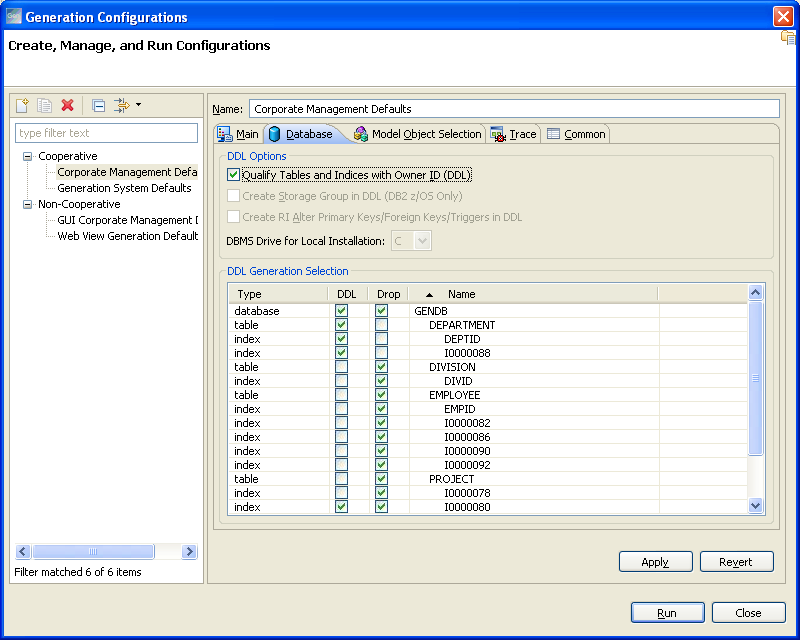
Adds the Owner ID as a prefix to all the table and index names in SQL DML for all the DBMS except Microsoft SQL.
Generates DDL with storage group definitions.
If you select DB2 z/OS as the database, the Create Storage Group in DDL (DB2 z/OS Only) check box is enabled.
If you select the Create Storage Group in DDL (DB2 z/OS Only) check box and the database contains storage groups, the DDL Generation Selection table contains storage groups for the database.
Generates DDL that creates alternate Referential Integrity Primary and Foreign Key triggers so that they can be compared against an existing database.
Note: This option creates the RI constraints and primary key statements only. No other DDL statements are generated.
If you select the Create RI Alter Primary Keys/Foreign Keys/Triggers in DDL check box, the Create Storage Group in DDL (DB2 z/OS Only) check box and the Drop column are disabled.
Specifies the drive on which the DBMS installs the database for a local installation. This option is valid only for the DB2 UDB database.
Displays the database objects in a tabular format. You can sort the Name column in ascending or descending order.
The following object types are included in this table:
Note: When a configuration includes the storage group for a database, we recommend you to select the database also in the configuration.
For model-based configurations, you cannot change the selection state of a database object if it has read-only protection.
Note: If you select a Business System, all the Load Modules under the Business System object are selected. Similarly, if you select a Procedure Step, all the Action Blocks under the Procedure Step object are selected.
Note: In Windows 7, the Trace tab shows disabled checkboxes only in the Windows Classic theme.
Specifies if trace information should be generated for the selected configuration. Selecting this check box enables the Trace Objects panel.
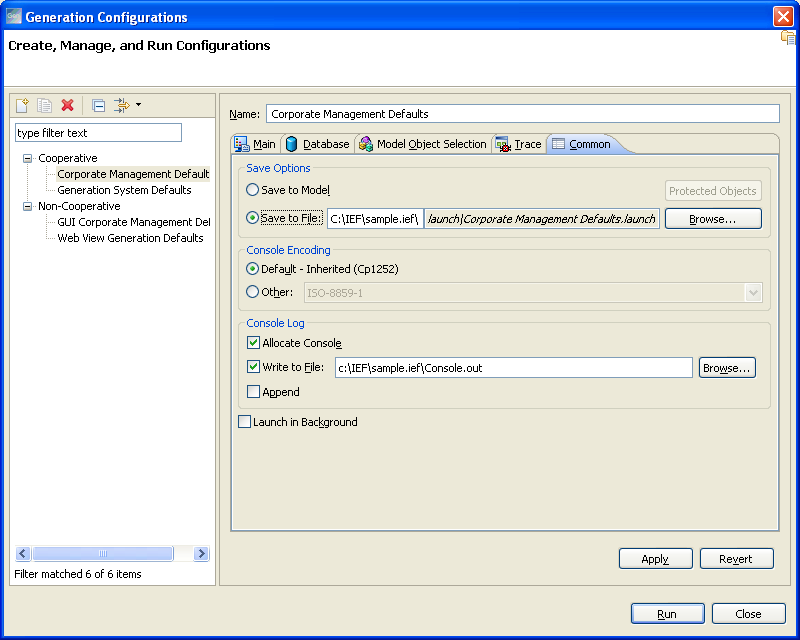
Saves the configuration settings to the model selected in the Main tab.
The Save to Model option is disabled in the following cases:
Displays a report listing the objects with Read protection that are defined in your file-based configuration. The Protected Objects button is enabled only when the Save to Model option is disabled and you have objects in your configuration with Read protection. The Protected Objects report file defaults to your local model directory.
Saves the configuration settings in a launch file, which by default is saved in the launch directory within your model directory.
Type the path in the field that is provided or click Browse to change the location. If the location you specified is valid but the folder is not yet created, a new folder structure is created. If the location you specified is not valid, an error message is displayed.
Note: If the specified directory path in the Save to File field is longer than the size of the field, the Protected Objects and the Browse buttons shift to the right and may not be visible on the dialog. To view these buttons, increase the dialog size accordingly.
The Save to File option is disabled in the following cases for model-based configurations:
For example:
The launch file is in XML format and encoded in UTF-8 format. The filename is in the following format:
<ConfigurationName>.launch
Specifies the name of the configuration.
Default: Selected
Specifies character encoding and displays the generation output.
Default: Encoding used by CA Gen Studio.
Specifies the use of the Console view to display the generation output.
Saves the generation output in a file. By default, the file location is the directory in which the model is saved. Console.out is the generation output filename.
Type the path in the field that is provided or click Browse to change the location. If the location you specified is valid but the folder is not yet created, a new folder structure is created. If the location you specified is not valid, an error message is displayed.
If the path specified is not accessible, an error message is displayed in the Console view.
Identifies if the output file is to be configured to the Append mode or the Overwrite mode.
Default: Overwrite mode
Runs the generation configuration in the background. By default, the generation configuration runs in the foreground and you can see a pop-up dialog showing the generation progress.
The generation configuration is created.
|
Copyright © 2013 CA.
All rights reserved.
|
|