

Follow these steps:
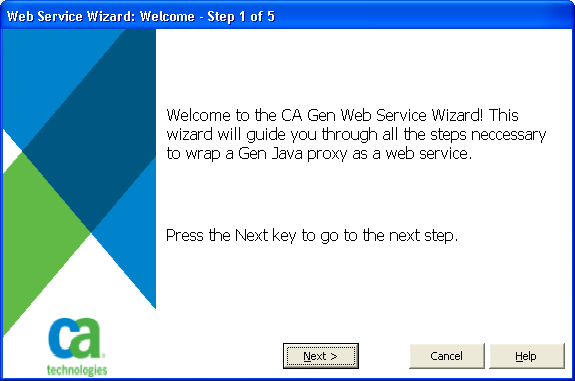
The Web Service Wizard Welcome panel appears.
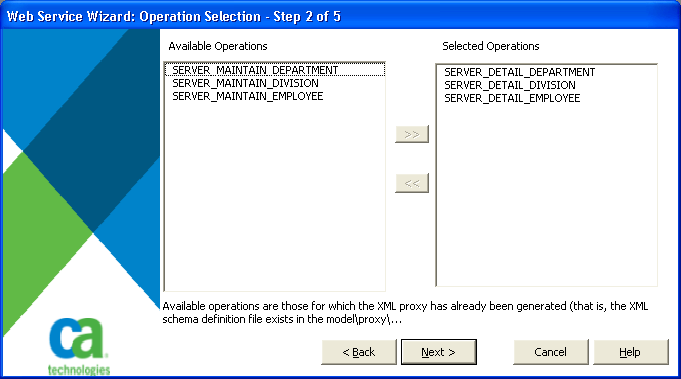
The Operation Selection panel displays the procedure steps (operations) that are available to be selected for inclusion in the web service. All available procedure steps that are packaged as server load modules are displayed, but only those that have the XML Java proxy generated are available for selection because the proxy generated XML schema definition (XSD) file is used to generate the WSDL file for the web service.
When operations in the Available Operations list are selected and valid, the >> button is enabled. Clicking this button moves the selected operations to the Selected Operations list. After the operations have been added to the Selected Operations list, the Next button is enabled.
When operations in the Selected Operations list are selected, the << button is enabled. Clicking this button removes the selections from the Selected Operations list and returns them to the Available Operations list.
Note: If the first character of procedure step (PStep) name is single byte numeral, the PStep name is displayed in the Step 2 to 5 window of the Web Service Wizard. If the color is red, you will not be able to select it.
|
Copyright © 2013 CA Technologies.
All rights reserved.
|
|